CampusKey
Your key to a confident journey!
Team
she/her

she/her

she/her

she/her

Problem and Design Overview
Navigating campus life can often place students in situations where they might feel uncertain or unsafe, such as exploring new areas, walking alone at night, or encountering new interactions. Most current safety tools fall short in providing immediate guidance or rapid response when an individual feels vulnerable. There is needs to be a solution that provides individuals with options, support, and direct connections to trusted help if situations escalate.
Our design, CampusKey, supports users in making confident decisions through a physical, clickable keychain device accompanied by an mobile application. This innovative design lets users instantly connect with a preselected group of trusted peers or emergency services at the click of a button, empowering them with a sense of security and confidence. The accompanying app provides a place for users to manage their safety network and access all keychain functionalities digitally, reinforcing an adaptable safety system that supports people on campus.
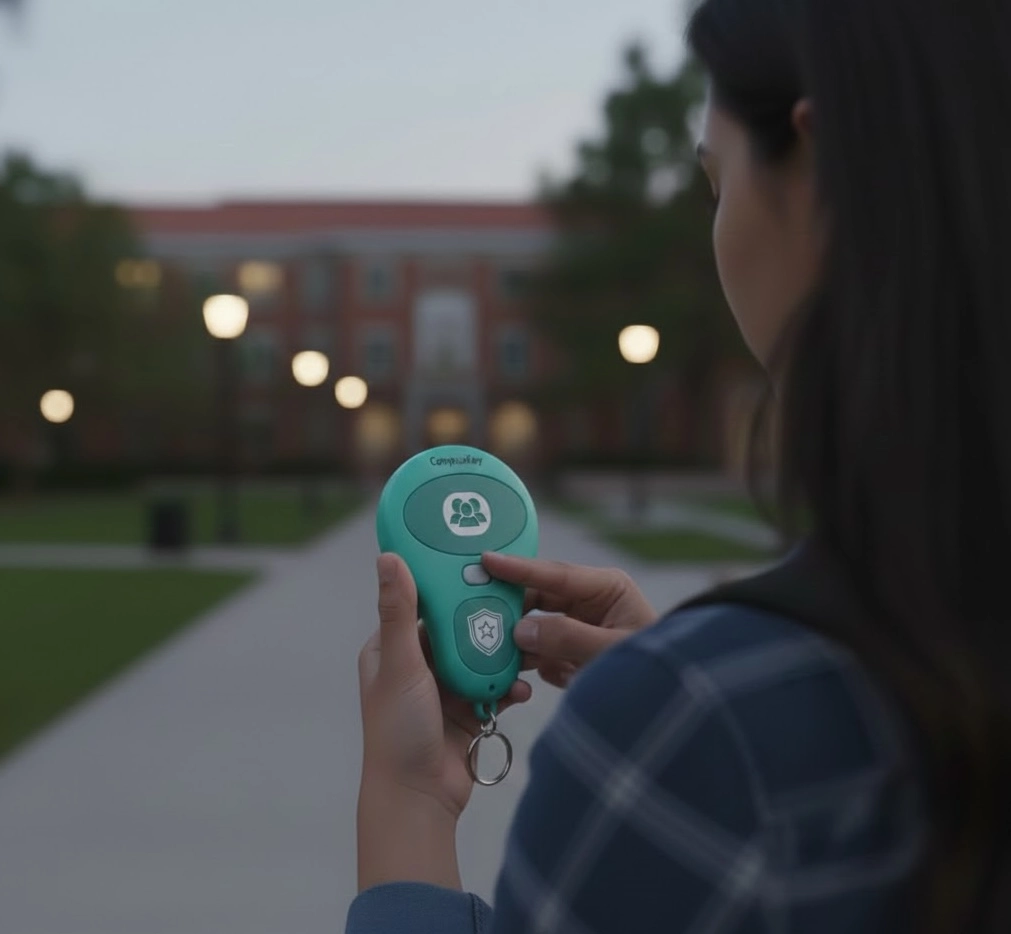
The CampusKey keychain can be used anywhere and anytime.
Design Walkthrough
To demonstrate the core functionalities of CampusKey, we focused on two critical tasks: contacting registered trusted friends for peer support and requesting immediate help from emergency services. These scenarios represent how both the physical keychain and mobile application enable the system to provide rapid, context-appropriate aid. The motivation behind these tasks is to help the user feel socially confident, that a buddy could be found or friends were alerted, and to provide essential preparedness for emergencies by empowering the user with clear options in any situation.
Initial Setup and Configuration
Before enabling either of the support functions, the user has to set up their safety network within the CampusKey mobile app.
Profile Setup: The user registers their personal information, including contact details and, if desired, critical health information.
Registration of Trusted Friends: User selects and registers trusted contacts who would be contacted during a help request.
Emergency Services Permissions: The user configures their preferred emergency contact, such as 911 or Campus Safety, and sets privacy permissions, determining whether their live location and health information will be shared with emergency responders when activated.
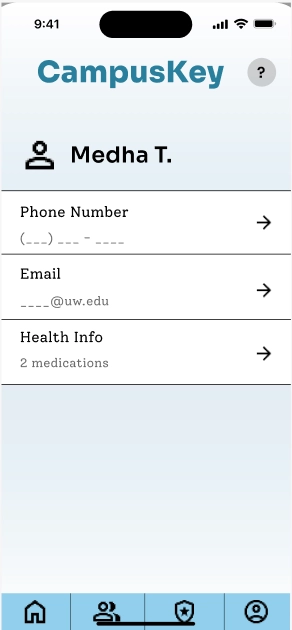
Profile Setup
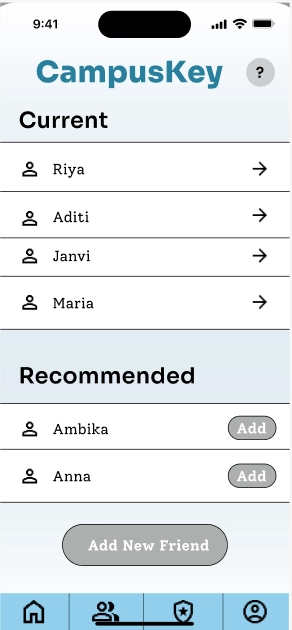
Registration of Trusted Friends
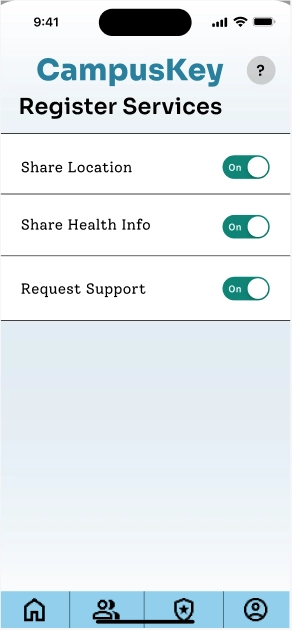
Emergency Services Permissions
Contacting Trusted Friends for Support
This task is focused on quickly connecting the user with their trusted network for immediate peer support, such as finding a walking buddy when one does not feel safe.
User Activation:
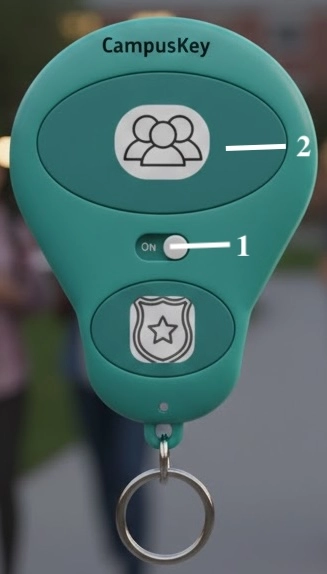
The user activates a physical keychain by flipping the safety activation lever. Then, the user presses the clearly marked Friends button on the keychain.
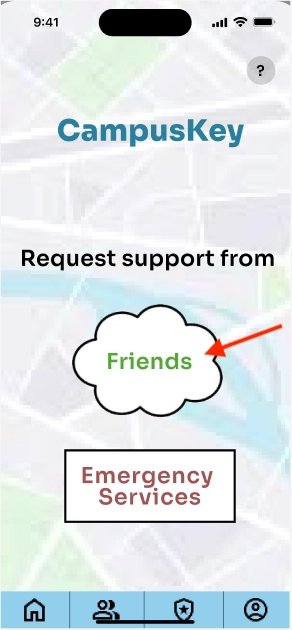
Alternatively, the user can press the Friends button within the CampusKey mobile app.
System and Friend Response:
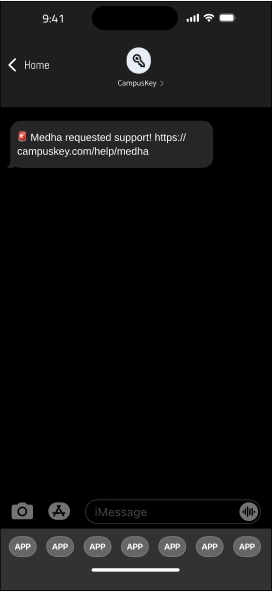
The application immediately notifies all the registered friends within a specified radius via a text message containing a hyperlink.
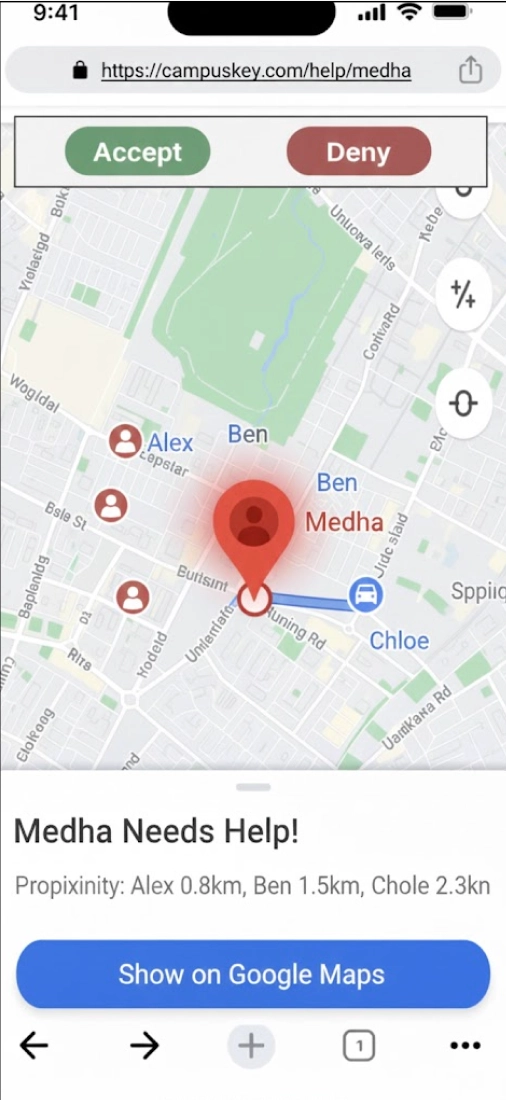
Upon clicking the link, it opens a response view that displays the user's live location and the status of the request.
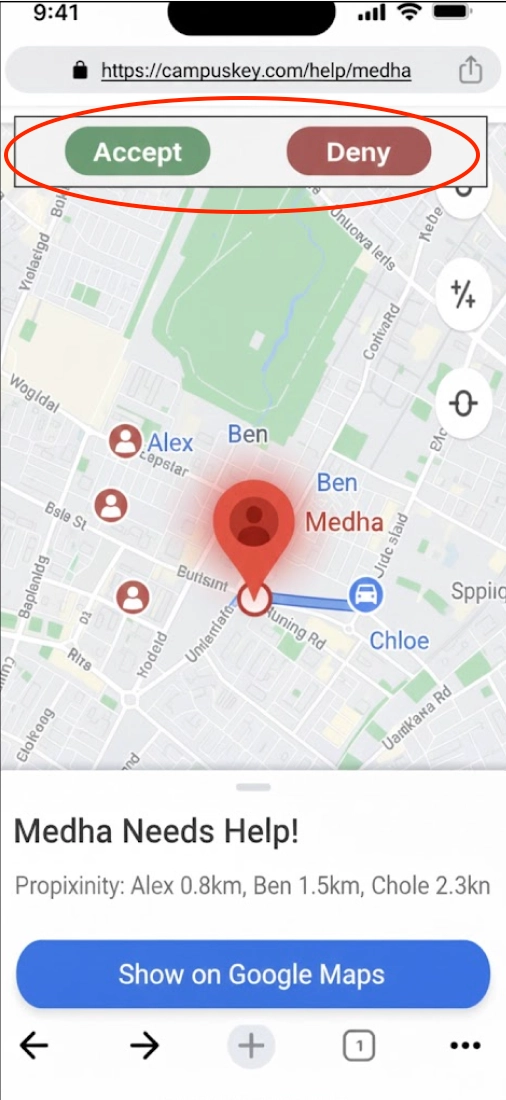
The friend may Accept or Deny the request to assist. The friend is able to view location indicators of the other trusted friends in the vicinity.
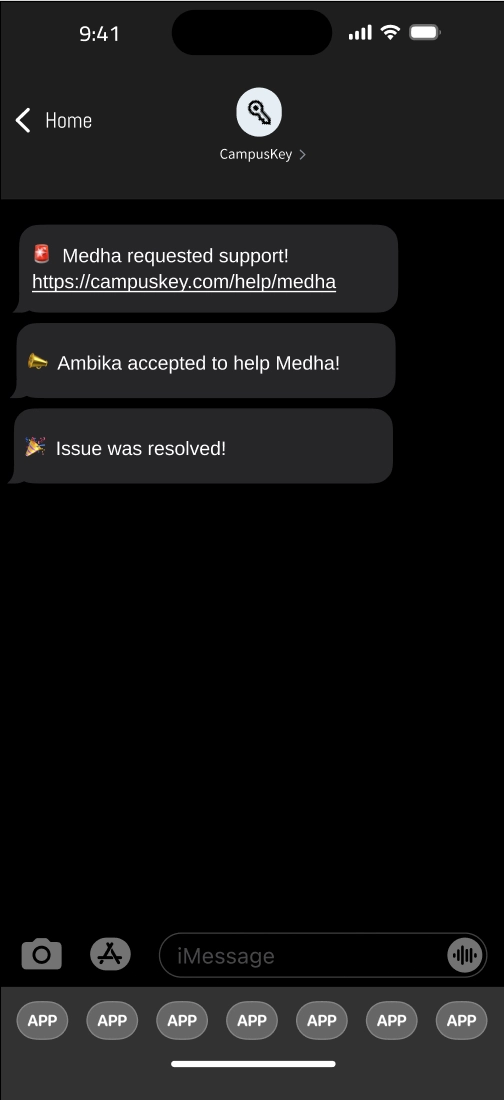
Regardless of whether a friend accepts or denies the request, they continue to receive updates through texts and within the app about the status of the request, including which friends have accepted and when the situation has been marked as resolved.
User Status Visibility:
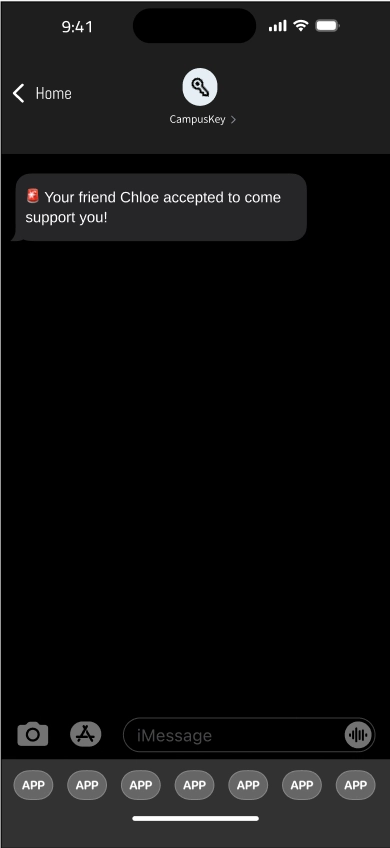
It sends instant text notifications when friends respond to the user.
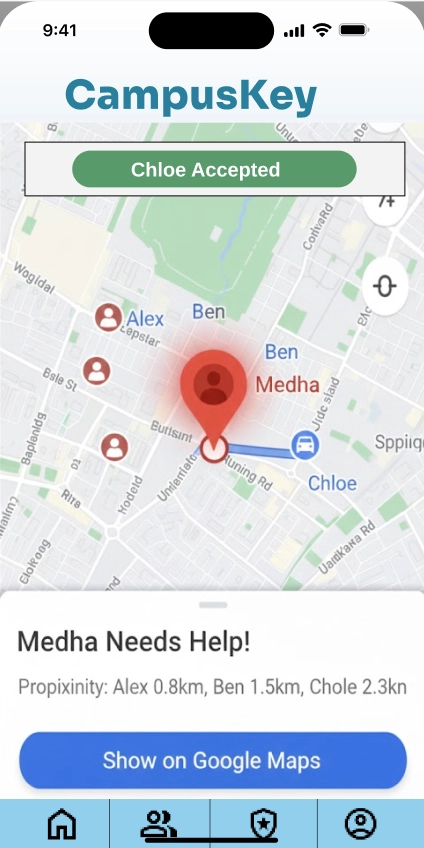
In case a friend accepts the request, their live location along with the current distance between them appears in the user's updated app interface. Thus, the user would be able to track the arrival of their support.
Requesting Emergency Services for Immediate Help
This task offers a direct and quick route to expert assistance for critical situations.
User Activation:
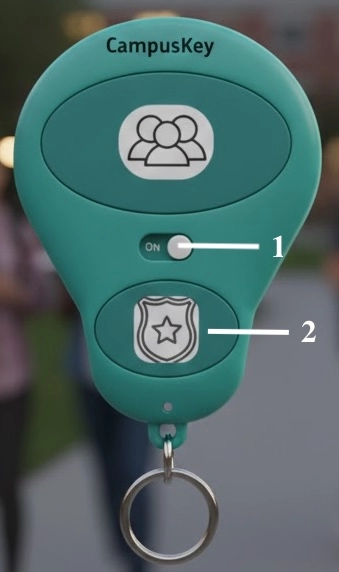
The user flips the safety activation lever to turn the device on.Then the user presses the clearly marked Emergency Services button on the keychain.
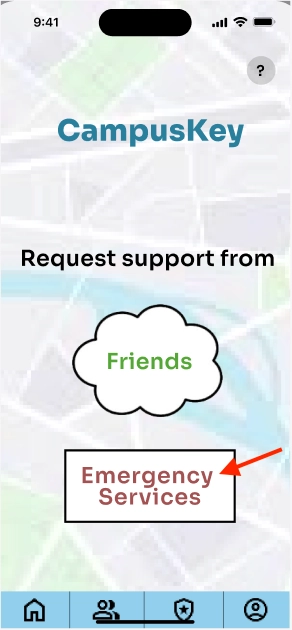
Alternatively, the user can press the Emergency Services button within the CampusKey mobile app.
System Response:
The system automatically calls the user's pre-set emergency contact, such as 911 or Campus Safety. A confirmation text message is sent to the user, informing them that emergency services have been alerted and are on their way. Depending on the permissions set during the setting up of the app, key information about the user, including their live location and any health data, is securely shared with emergency responders so that they will come prepared. Note: The user will not be able to see the live location of the emergency services vehicles as they would when using the friends function; however, they will know via text that help is on the way.
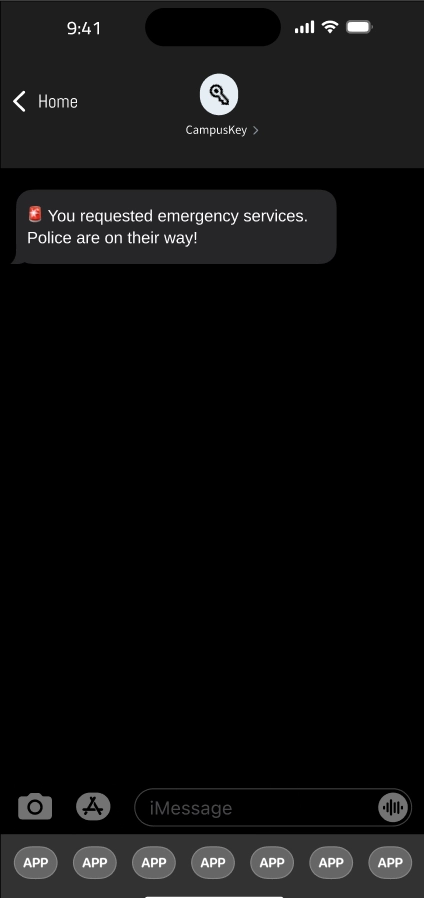
Confirmation text is sent to user.
Only information enabled in app permissions is shared to emergency services.
Design Research and Key Insights
Our design research focused on understanding the emotional and behavioral factors that contribute to the sense of safety or unsafety among University of Washington students on and around the Seattle campus and in the U-District area. Our primary goal was to target beyond simple technical challenges, such as a lack of alerts, to instead understand the user's need for guidance, options, and support at moments of uncertainty. We conducted semi-structured interviews, approximately 30 minutes each, with a diverse group of current UW undergraduate and graduate students representing different genders, backgrounds, and travel patterns across campus. We chose this method because in-person, conversational interviews provide a comfortable setting for participants to share detailed experiences that are closely aligned with real life for our target users and reveal deeper design opportunities than quantitative surveys.
Confidence is Built by Immediate Social Support
A trusted companion greatly increases the perceived safety of an environment, which proved to be a main factor in decreasing fear and anxiety. Throughout the interviews, participants identified that the absence of social presence greatly lowers their sense of security, especially when walking alone at night. From this, our solution needed to focus on the features that provide the most social connectivity. For instance, Participant 1 said, "One of the biggest benefits of living in the sorority house is living with 80 people gives me a good chance someone is walking home the same time as me . . . I hate walking alone at night." As a result, we shifted our design focus from strictly location alerts to developing a system that facilitates an immediate request for a "buddy check-in" or "walk-with," making the digital presence of others reassuring like the physical presence.
The "Brain Freeze" Effect Demands Guided Response Strategies
A major finding was that the internal response to an unsafe situation is often marked by disorientation and the inability to take immediate, actionable steps. Users articulated that the source of feeling unsafe did not come from the danger itself, but from a lack of knowledge on how to act appropriately. This inability to determine how to best navigate high-stress moments led us to fundamentally shift our design problem from providing generalized alerts about dangerous areas to supporting an individual who is unsure how to face an unsafe situation. This is reflected by Participant 2: "When I find myself in an unsafe situation near campus, my brain just freezes. I don't know whether to run or call for help. Sometimes I just wish a system could help me calm down and give me ordered, clear instructions on how to mitigate a situation." This insight drove the need for a solution that provided immediate, easy-to-follow, customized guidance and connection options-like calling friends or 911-integrated into our keychain and app designs.
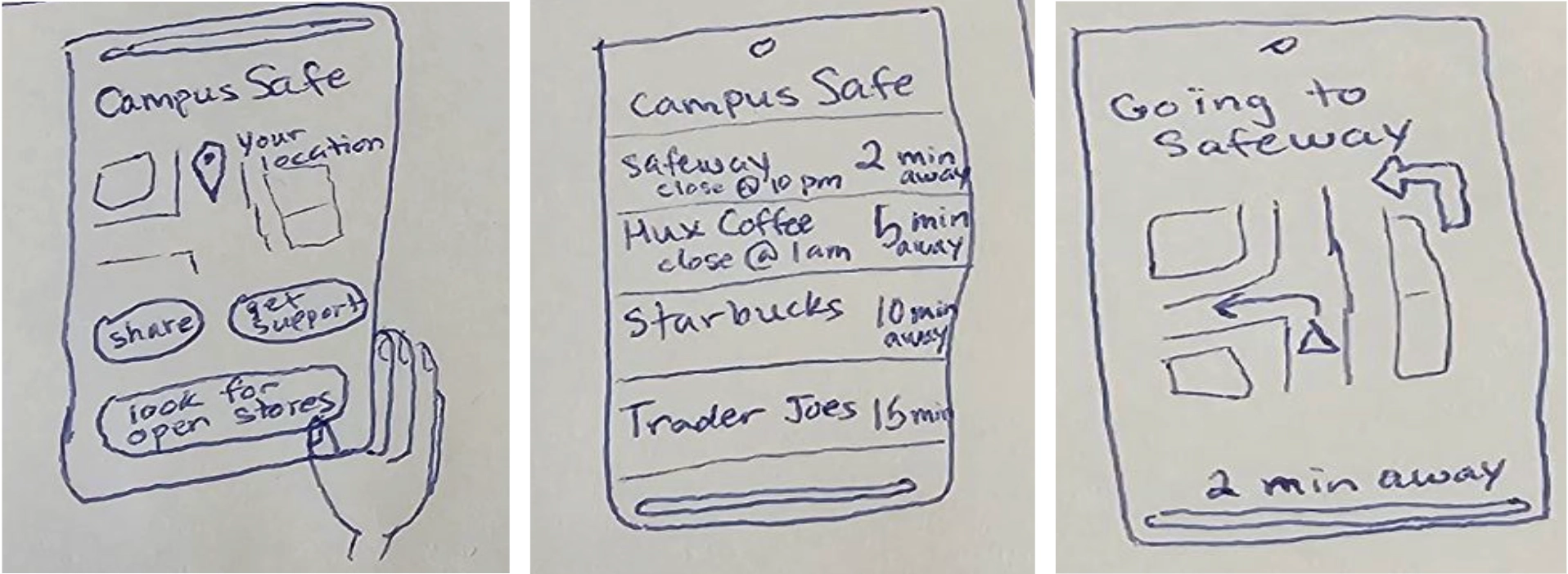
Initial design prototype where users are shown nearest open stores and map to navigate there.
Safety Sentiment is Deeply Influenced by Prior Knowledge and Experience
Safety is a very subjective feeling and highly dependent on external information, personal experience, and familiarity with a place. The participants who were not from an area or who had been exposed to any negative stories were much less secure when compared to the participants that knew the surroundings. This really pointed out the need for personalized context rather than raw statistics of crime. Participant 3 said, “I think feeling safe or unsafe depends on what I know or don’t know about an area. I was always checking around us because it was also nighttime and I was not very familiar with the area. I had also previously heard about incidents going on in this area.” This further strengthened our decision to build a platform for confidence through empowering the user to act and not just warning them. The shift was to be made from focusing on the external, area-based danger to the provision of internal resources to the individual for feeling confident enough to navigate any environment.
Iterative Design and Key Insights
Our iterative design process moved from initial paper prototypes, heuristic evaluations, and user-centered usability testing before evolving into the final digital mockup. The initial paper prototype reflects two key decisions: centralizing all personal and emergency settings within the mobile application for consistency in management and limiting the function of the physical keychain to being no more than a simple, immediate contact activation tool. This approach helped ensure that core interactions were intuitive, even in high-stress situations. Inspection and testing beyond this provided issues related to system clarity and usability to help us move from complex to simpler, more reliable interactions.
Simplifying Complex Interactions for High-Stress Scenarios
We greatly simplified the main activation mechanism by removing pattern-based input for more clear, dedicated buttons. The initial design for the keychain overcomplicated things: the user had to remember and perform a specific clicking pattern (e.g., two clicks for friends, three for emergency services) to differentiate the request for support. Heuristic evaluations immediately flagged this as violating the Recognition Rather than Recall principle, which states that complex memorized patterns are infeasible under stress. Additionally, usability testing showed subjects were confused as to which button corresponded to which service. To fix this, we iterated to a design with two distinct buttons, each clearly illustrated with a dedicated icon, one for Friends and one for Emergency Services. We also included an error-prevention mechanism, a safety lever that the user must engage before a click is registered, reducing the chances of accidental activation.
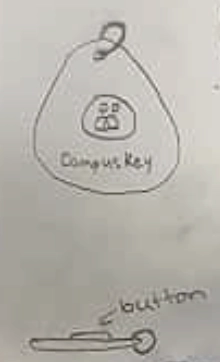
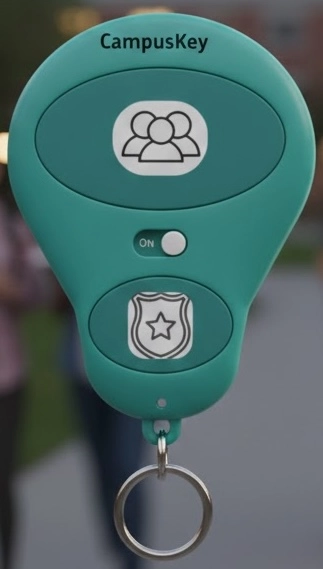
Shift from patterned clicking to separate buttons with activation lever to prevent confusion and accidental clicking.
Capturing Critical Information to Maximize User Safety
We improved the setup of the user profile to include
sharing of relevant health information in case of emergency response. Our
initial design was directed only at contacting friends and emergency numbers
and did not capture potentially life-saving data. Heuristic evaluations identified
this as a gap in maximizing user safety, especially in cases where the user cannot
communicate verbally because they have been incapacitated. This led us to reassess
the Profile configuration in the app to allow the user to provide and securely store
relevant health and medical information. Critically, we added a privacy toggle to
allow the user to explicitly control if this sensitive data is shared with emergency
services on activation to ensure user autonomy while maximizing the potential for
effective support.
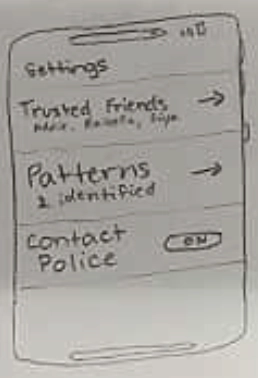
Shift from minimized profile information to health and user information for security and confidence.
Ensuring Full Visibility of System Status Across All Parties
We improved system visibility by providing real-time status updates to both the requesting user and their contacts. Both heuristic evaluations and usability testing pointed out a key issue of the original prototype: after activation, the user who initiated the request had no indication of what was occurring, representing the lack of the Visibility of System Status heuristic. While friends could view the request, the user was unable to confirm acceptance or proximity. This proved a key source of confusion and duress. The revised design fixed this situation by having all parties receive real-time updates in the form of text notifications and in-app tracking. Importantly, the requesting user interface now showed who accepted the request, the current location of the accepted friend, and their live distance on a map, reassuring them constantly and allowing them to track the arrival of their support.
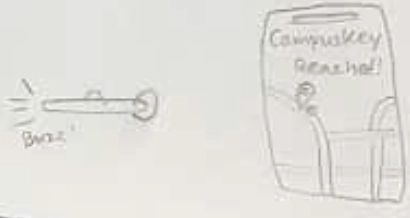
Initially, only the user's keychain would buzz when their friend accepted or were nearby.
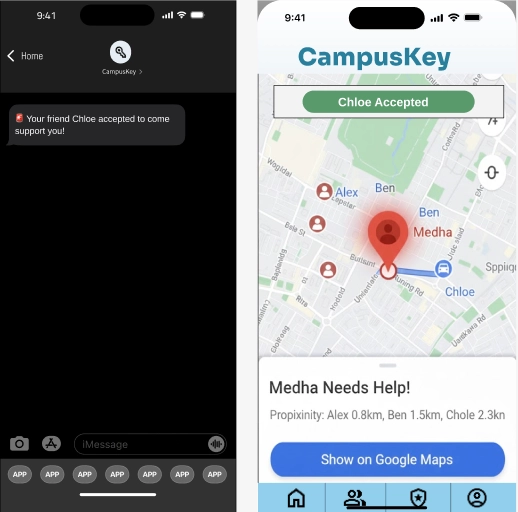
Now, all of the trusted friends and the user can see where their friend (who accepted) is.