Skip to main content
Link
Menu
Expand
(external link)
Document
Search
Copy
Copied
# Accessibility Stack for App Design How to implement apps with accessibility technology in mind cse482a: Fall 2026; Jennifer Mankoff (Last Edited: 2026-11-09). <a href="/courses/cse482a/26au/slides/access-stack-capstone.html">Live View: /slides/access-stack-capstone.html</a> Important Reminder: check zoom & captioning <a href="/courses/cse482a/26au/slides/access-stack-capstone.html"><img src="https://api.qrserver.com/v1/create-qr-code/?data=/slides/access-stack-capstone.html&size=100x100" alt="QR for /courses/cse482a/26au/slides/access-stack-capstone.html" title="" /></a> --- <div class="slide-outline" style="margin: 1em 0; padding: 1em; background: #f5f5f5; border-radius: 5px;"> <h2 style="margin-top: 0;"> Outline </h2> <ul style="list-style-type: none; padding-left: 0;"> <li><a href="#3">How your code becomes what assistive technology sees</a> (Slide 3)</li> <li><a href="#9">Accessibility Stack</a> (Slide 9)</li> </ul> </div> --- class: center, middle, inverse # How your code becomes what assistive technology sees --- ## Lifecycle of a browser* loading a page .left-column40[ 1. Fetch the page 2. Parse the page 3. Build up an internal representation of the web page 4. Display the page ] .right-column60[  ] .footnote[*: As seen by Chrome] --- ## Parse and Display the Page .left-column[ 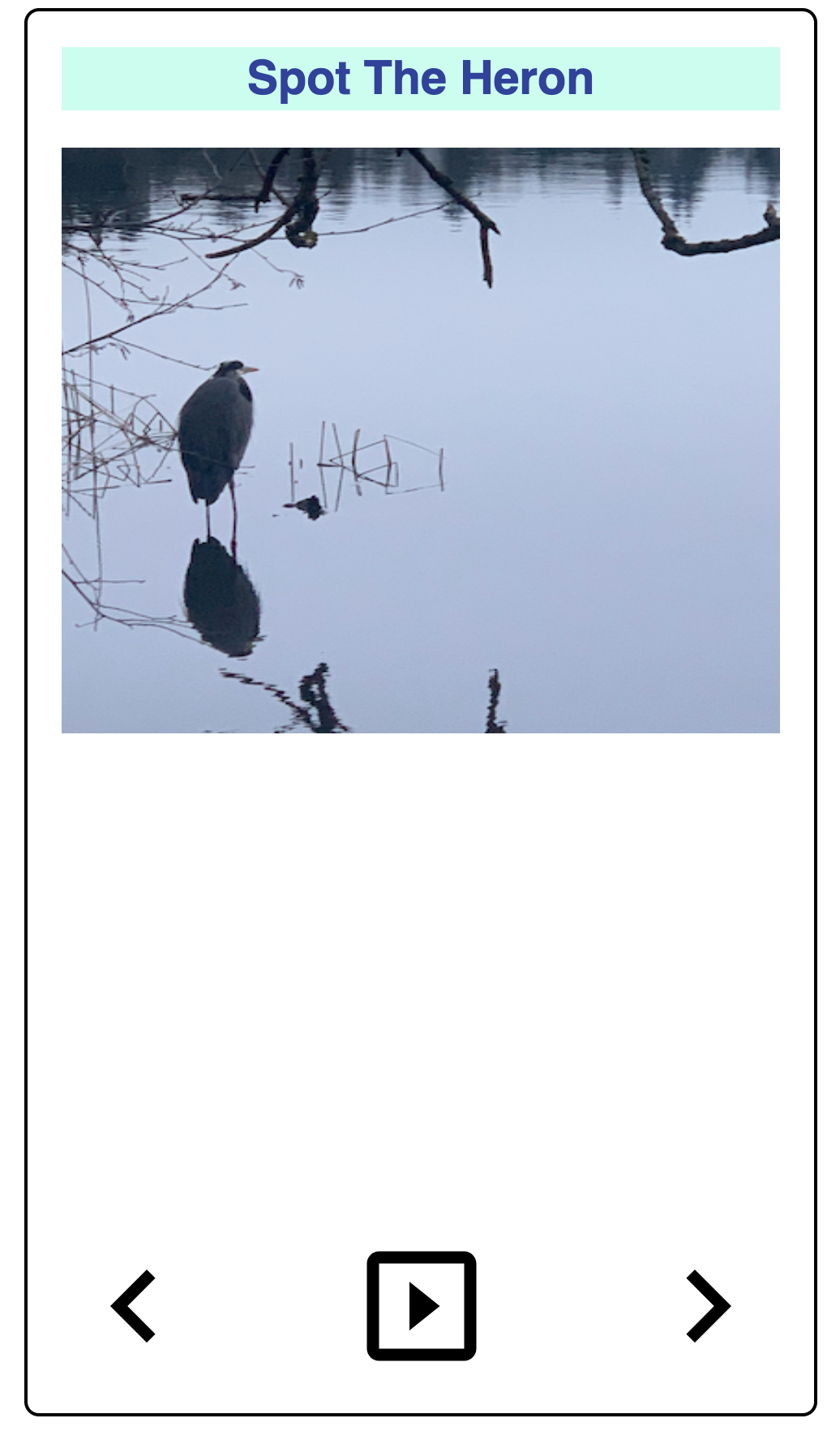 ] .right-column[ 1. First line: <!DOCTYPE html> - Ok: need to build an internal representation of the page 2. Line-by-line, go through the HTML - If one of the tags links to a cascading style sheet (CSS) file, load and parse it - If one of the tags links to Javascript (JS) for behavior, load and parse it 3. FINALLY display the page… ] --- ## Document Object Model (DOM) (1/3) .left-column[  ] .right-column[ - This builds a hierarchy of document elements in what we call the **Document Object Model** - The structure of this depends on our HTML (or the toolkit that generates your HTML) - The structure of this influences layout ] --- ## Document Object Model (DOM) (2/3) .left-column[  ] .right-column[ What does this hierarchy look like? ] --- ## Document Object Model (DOM) (3/3) .left-column[  ] .right-column[ <div class="mermaid"> flowchart TD A(Main Window) B(Vertical Layout) C("Spot the Heron" Label) D(Picture of a heron in water with some reeds) E(Horizontal Layout: Controls) F(Left arrow) G(Play) H(Right arrow) A --> B B --> C B --> D B --> E E --> F E --> G E --> H classDef default fill:#009688,stroke:#333,stroke-width:2px, color:white; classDef reflect fill:#4CAF50,stroke:#333,stroke-width:2px, color:white; class A,B,C default class A,B,C,D,E reflect linkStyle default stroke: black,stroke-width:8px </div> ] --- class: center, middle, inverse # Accessibility Stack How your code reaches assistive technology --- ## What is the problem? - Mostly, it's frontend developers - And content providers --- ## Example: An Accessible Button When you hear the word "button" in the context of a graphical user interface (GUI), what do you think of? --- ## What should it do? - content? - structure? - style? - behavior? [Making Accessible Buttons](https://jessijokes.medium.com/one-button-to-rule-them-all-465e294cba82) --- ## Let's look under the hood The button doesn't talk to the screen reader, it provides information via the UI toolkit to the browser, which the screen reader interacts with.u - Type (Input, button) (content) - Name (content) - Where to place it (layout) - How it looks (style) - How it should react to user input and from which device? (behavior) --- ## Then a bunch of other things get involved .left-column40[ 1. Fetch the page 2. Parse the page 3. Build up an internal representation of the web page 4. Display the page ] .right-column60[  ] .footnote[*: As seen by Chrome] --- ## Parse and Display the Page .left-column[  ] .right-column[ 1. First line: <!DOCTYPE html> - Ok: need to build an internal representation of the page 2. Line-by-line, go through the HTML - If one of the tags links to a cascading style sheet (CSS) file, load and parse it - If one of the tags links to Javascript (JS) for behavior, load and parse it 3. FINALLY display the page… ] --- ## Building for Accessibility <DIV class="mermaid"> graph LR SR[fa:fa-volume-up <BR> Screenreader<BR>]:::bluelarge -->|Asks for next object in DOM| API(fa:fa-codepen<BR> Accessibility API<BR>):::bluelarge API -->|Passes along request| ATK[<BR> Toolkit<BR>]:::bluelarge ATK -->|Checks Details| App[fa:fa-mobile <BR>App<BR>]:::bluelarge App -->|Name: Foo| ATK ATK -->|Name, Role: Button| API API -->|Name, Role| SR </div> - This information must be provided by the developer (and in some cases, parts of the info provided by toolkit library) - Accessibility APIs provide the information to a screen reader. - Screen readers provide this information visually, through audio or in Braille to users. ??? As an example, we'll focus on screen readers Screen readers get underlying information about controls from operating systems. --- ## Different types of interface toolkits all have similar libraries | Does What? | Android | Web | |--- | --- | --- | | Content| Java | HTML/CSS/JS | | Style | Layout | CSS | | Structure | Interactor Hierarchy | Document Object Model (DOM) | | Content | Components | DIVS | | Style | Paint objects on a canvas | CSS | | Behavior | Event Handling | Event Handling/JS | --- ## Some Comparisons | Android | Web | | --- | --- | | Java | HTML/CSS/JS | | Layouts | CSS Flexbox or Grid | | Interactor Hierarchy | Document Object Model (DOM) | | Components | DIVS | | Paint objects on a canvas | CSS | | [onCreate] | [window.addEventListener("load", init);] | | [View.OnClickListener#onClick] | [domElement.addEventListener("click", callback);] | --- # Impacts on Accessibility? | Android | Web | Accessibility (eg s) | |--------------------------------|---------------------------------------------------|--------------------------------------| | Java | HTML/CSS/JS | Does the toolkit support access? | | Layouts | CSS Flexbox or Grid | Comprehension/Magnification | | Interactor Hierarchy | Document Object Model (DOM) | Navigation | | Components | DIVS | Alternative text (toolkit dependent) | | Paint objects on a canvas | CSS | Color choices | | [onCreate] | [window.addEventListener("load", init);] | Proper Interaction with access API? | | [View.OnClickListener#onClick] | [domElement.addEventListener("click", callback);] | See above | --- ## Key Take Home Message IF you take one thing away from this whole discussion, it should be: *YOU* decide who is disabled with respect to the technology you create
