Quartus Tutorial (Attu)
Introduction
This tutorial will walk you through the process of using Quartus to develop circuit designs, simulate them on a computer, and then load them onto the FPGA in the middle of the DE1-SoC board.
The course software is preloaded on Attu, but requires a few things to be downloaded to your personal computer. To set everything up, follow the instructions in the Software Setup guide. You can also follow the Windows tutorial and use the machines in the CSE 003 lab.
1. Starting a new project
A Quartus project consists of a folder full of your Verilog code and also a bunch of configuration files that explain how to map that code to the specific FPGA we use for this class.
These projects can be tricky to set up, so for every lab we recommend creating a new folder and unzipping our starter project files into it. You can then start adding new Verilog files as necessary.
To keep things easily findable, we suggest organizing these project folders into a directory called "cse369" in your home folder.
Go ahead and download that starter project and unzip it into a "lab1" directory.
2. Creating New Modules
Let's describe a circuit with code!
We will create a simple design of a 2:1 MUX – this is a device with two data inputs i0 and i1, and a select input sel. The output is equal to the i0 input when sel==0, and the output is equal to the i1 input when sel==1.
- Get the source file.
Download the
mux2_1.svfile from the Lab 1 specs into yourlab1subdirectory. Open it and take a look at the contents: this file contains two modules. One is a new circuit we can use in our project (mux2_1) and the other is its test bench (mux2_1_tb) for verification.💡 Every Verilog module you write in this class should have a testbench, no matter how small. - Add the new source file to your project. Open
DE1_SoC.qsfin a text editor. This is the file that lists each of your Verilog sources (sort of like a makefile).
Add this line to the bottom:
set_global_assignment -name SYSTEMVERILOG_FILE mux2_1.sv
For future labs, you can create code files from scratch by following the below steps:
- Create a new source file that ends with the extension "
.sv". The name of this file and the name of the module inside of it should be the same. - Add a reference to your source at the bottom of the project QSF file. The format of this line needs to be:
set_global_assignment -name SYSTEMVERILOG_FILE your-file-here.sv
whereyour-file-here.svis replaced with your new code's filename. - Populate the file. Type away! Generally, each file will contain a single module of the same name as the file itself, and that module's testbench. The testbench will have the same name as the module, but with
_tbsuffixed to the end.
3. Synthesizing a Design
Now that we have our module added, we need to check that it is valid Verilog:
- Set the “top-level” module. As we go through the class, we will create designs with many different modules all talking to one-another; Quartus needs to know which of the files holds the top-level, complete design. In the QSF file, look for the line of the form:
set_global_assignment -name TOP_LEVEL_ENTITY
(it's usually at the top of the file). The last argument on that line specifies the top-level module. Set it to "mux2_1". That line should read:set_global_assignment -name TOP_LEVEL_ENTITY mux2_1 - Run Quartus's Design Compiler. Use this command to turn your Verilog code into a low-level circuit:
quartus_sh --flow compile DE1_SoC.qpf
Among the pages of compiler output, Quartus will yell at us if the design is not syntactically correct.ℹ️ This step is actually optional for running simulations. However, Quartus’ interface for compilation warnings and errors is better than ModelSim’s, so we typically prefer to fix our code here. Once you are confident in your syntax, you can skip this step after making small code changes in-between simulation runs. - Fix any syntax errors. The Analysis and Synthesis tool should run for a little while, and then tell you in the terminal output that “Analysis & Synthesis was successful.” If it does not, look for error messages towards the bottom of the command output. They'll point to the problematic code lines. Correct the problems, and re-run the compiler.
Once Quartus declares success, we know that the file is syntactically correct Verilog. However, we don’t know whether the design is a proper implementation of the desired functionality. For that, we will simulate the design, which uses the Icarus Verilog simulator to show the actual behavior of our design.
4. Simulating a Design
In addition to Quartus, we will be using the open-source Icarus Verilog simulator to run our testbenches before we ever touch actual hardware.
- Run the simulation. You can tell IcarusVerilog to run your testbench with the terminal command:
simulate-verilog TESTBENCH_MODULE_NAME VERILOG_SOURCE_FILES...
If the testbench's name is "foo_tb", the simulation output dump will be saved to a file called "foo_tb.fst" in the same directory.
So, to run our mux2_1 testbench, we'll run:
simulate-verilog mux2_1_tb mux2_1.sv - Download the simulation dump to your computerThe output of the simulation is not plaintext and needs to be opened in a GUI application called a wave viewer to be useful to us. To do that, we first need to get the dump file off of attu and onto our local computer.
Open a local bash shell (not attu) and use scp to copy the file over. The simulation command from the previous step will actually give you the exactscpcommand you need to run. It'll look something like this:
scp UWNETID@attuN.cs.washington.edu:cse369/lab1/mux2_1_tb.fst .
(Don't run this exact command, run the one it gives you) - Open the dump file in Surfer. Surfer is a graphical wave viewer we had you download. Open Surfer, and then click the "Open file" button in the top left. Find the
mux2_1_tb.fstfile you downloaded from attu, and open it: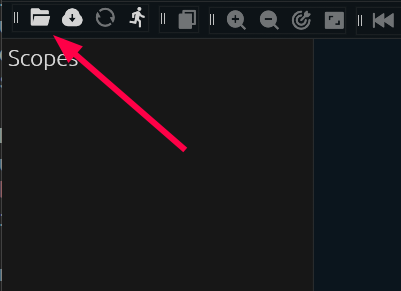
-
Add some signals to the display. The scopes bar on the left is a heirarchical tree of all the Verilog modules being simulated.
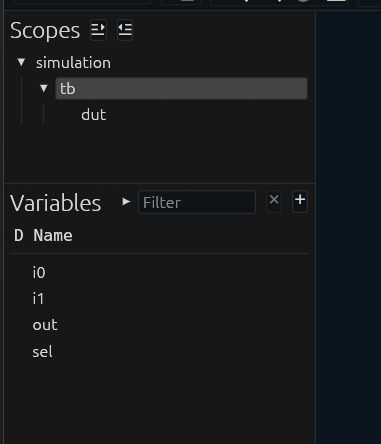
If you right-click "Simulation" and say "Add scope as group recursively," all of the Verilog variables from the simulation will appear in the wave viewer on the right:
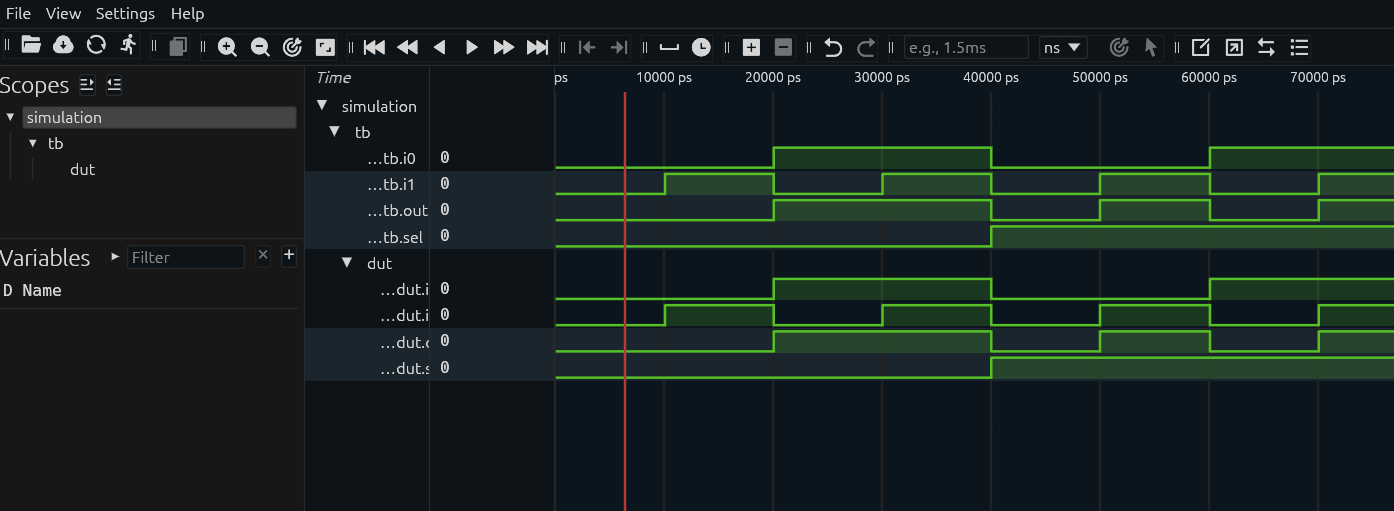
Time moves from left (start) to right (end). Notice the time labels at the very bottom and top of the wave area. The green lines each indicate a Verilog variable (that is, an electrical value on a wire) in the circuit. When the green line is up, it means that signal is true (or high voltage); when the green line is down, it means the signal is false (or low voltage).ℹ️ Any red or blue lines indicate that there is a problem in your Verilog files; check that you have done all of the previous steps correctly.
5. Navigating the Simulation
Let’s explore the navigation options in Surfer:
-
Use the Zoom commands: Found in the toolbars near the top of ModelSim.

The left two buttons (+ and - magnifying glass) zoom the horizontal axis of the wave viewer. This is useful once we have long testbenches with lots of test cases. You can also zoom by holding the Control key and scrolling, or using the pinch gesture on your touchpad. The target button zooms around the red timeline cursor, while the rectangular-looking button zooms to fit the entire waveform in the window. -
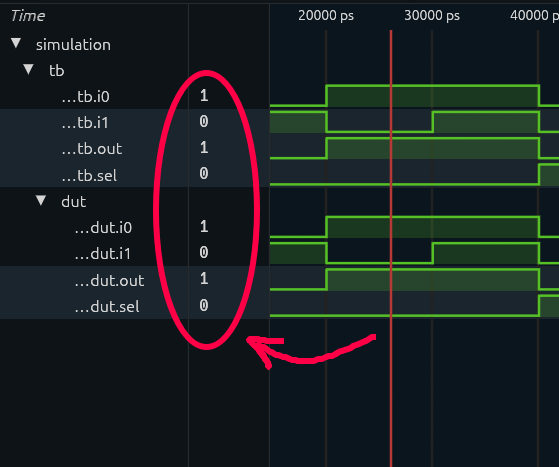
View signal values in the Msgs column: Left-click anywhere within the waveform viewer (the part with the black background) to move the cursor, which is the red vertical line with the time in the bottom right. The signal names on the left will indicate what their values are at the time specified by the cursor:
-
Use the Wave Cursor commands to jump to points of interest: Also found in the toolbars near the top of ModelSim. To be usable, a single signal must be selected/highlighted (click on a signal name).

Select thetb.i1signal and play with the cursor movement commands (and other buttons) to see what they do.
6. Saving the Simulation View
Once we have adjusted our simulation view to better display our design results, we will often want to save these settings into a layout file so our next simulation run will return to this Wave pane setup.
- Select
File→Save Stateor pressControl-S. - Name the state file
mux2_1_tb_wave.surf.ronand put it next to the verilog files. In general, we will use the format file naming convention of<moduleName>_wave.surf.ron.
File→Load State to bring all of your viewer settings back!.
7. More Complex Designs – Create a 4:1 MUX
The 2:1 MUX is a simple design to get you started. But real designs will have multiple files and won’t have all the scripts set up for you. Here we will show you how to build a new, more complex design that will demonstrate how to work with the various ModelSim support files.
- Download
mux4_1.sv, which usesmux2_1as a submodule and contains its own test bench, from the lab specs into your lab1 folder. Add a line for it in your project's QSF file as we did before. - Set
mux4_1as the top-level entity at the top of the QSF file and runquartus_sh. Fix errors as necessary until successful. - Run your simulation using the
simulate-verilogcommand. Look inmux4_1.svto see what the testbench is called, and include it in the simulation command along with all of your*.svfiles.ℹ️ A super-general command to run the simulator is to use a bash wildcard to slurp up all of your project's Verilog files. All you have to do is specify the testbench module:simulate-verilog TB_NAME_HERE *.sv - Once the simulation is done, copy it over to your computer and open it in Surfer. Inspect the waveforms and try to describe in human language what the module is doing!
8. Process Recap
You now have the commands necessary to develop new designs, commands you will use for all future labs. Just to make sure you’ve got it, here’s a cheat-sheet of the steps for future Verilog designs:
- Make a new lab folder that isn't inside of any of the old ones. Unzip the lab1 "starter project" files into it.
-
For each module you need to:
- Create and populate a new file that contains both the module definition and the corresponding test bench for that module.
- Set the new module file as the top-level module in the Quartus project's QSF file.
- Run the Quartus compiler on Attu and fix any errors it finds.
- Simulate the testbench with Icarus Verilog on Attu and download the wave dump to your own computer.
- Check the simulation result in Surfer. Correct errors and iterate until the module works as intended.
9. Mapping a Design to the FPGA Hardware
So far we have developed and tested a design completely in software. Once it is working, it is time to use Quartus to convert that design into a form that can actually be loaded onto the FPGA.
To use the switches, lights, and buttons on the DE1 board, we need to hook up the connections of the circuit design to the proper inputs and outputs of the FPGA.
Download the file lab1.sv from the Lab 1 specs into your lab1 folder, add it to your project, then set it as the top-level entity in the QSF.
We now need to compile the design into a bitfile, a file that can be downloaded to the FPGA. To do that, just run the quartus_sh command again.
This will run the multiple steps necessary to compile the design. It may take a while.
The .rbf file in the output_files folder is your compiled circuit! You can distribute this file to your friends and family stand-alone without the rest of the project files; it can be downloaded to any DE1-SoC.
10. Configuring the FPGA with the Bitfile
We now need to send the bitfile to the DE1-SoC.
- Use
scpto download the following files from Attu to your computer:- the rbf file from the project's output_files folder
- the file "blaster_6810.hex" from the main project folder
💡 This file doesn't change and you should only need to download it to your computer once.
- Connect the DE1-SoC to wall power with the power cord.
- Make sure that the board is off (i.e., the board should not light up when you plug it in), then connect the board to your a USB port on your computer. If you don't have any USB-A ports (the big rectangular ones), everything should still work through a USB-C dongle (you can rent these from CSE-IT's office in the Allen building).
- Turn on the DE1-SoC.
- Run this terminal command in the folder containing your design's RBF file and the HEX file:
openFPGALoader --probe-firmware=blaster_6810.hex -b de1Soc YOUR_RBF_FILENAME_HERE
Replace the last argument with your RBF filename.💡 If the command doesn't work, double-check that the hex file and rbf file are in the same folder, and that is where you are running the command from. Also double-check that the board is plugged into your computer and turned on. - The design should now be loaded onto your FPGA board. Congratualtions, you've built a circuit!!! Take a look at the lights — are they doing what you expect?