Setting up Lab Software
Introduction
The labs in this class use three pieces of software:
- ModelSim, which simulates your Verilog entirely in software so you can debug it (because debugging real physcial hardware is astronomically harder!!!)
- Quartus, which synthesizes your Verilog code into a low level physical circuit description (an
soforrbffile). It is analagous to compilers likegccin a systems programming class - The programmer, which loads the synthesized circuit file onto the physical FPGA over a USB cable
Windows
We will use the Quartus and ModelSim GUIs for synthesis, simulation, and device programming:
- Download the files from this UW ECE/CSE Quartus Install Files directory from a browser. You'll need the Quartus and ModelSim install files and the CycloneV .qdz file. Save all of these to the same directory.
- Run the QuartusLiteSetup executable (this is slow to start up). When it asks for components to install, select all of the following: "Quartus Prime," "Devices→Cyclone V," and "ModelSim – Intel FPGA Starter Edition." When the software is done installing, make sure to select "Launch USB Blaster II driver installation."
- Start the Quartus software. When it asks about licensing, select "Run the Quartus Prime software" (the free version doesn't require a license). You will likely have to start it twice to get it to run the first time.
MacOS
As of 26au this workflow for Macs is brand new, and so we are all "beta testers," including your TAs and instructor. If at any point this workflow proves too much trouble, or you're short on time, you can also use the Windows computers in the hardware lab (CSE 003), which have Quartus and ModelSim pre-installed.
Quartus and ModelSim don't work natively on Apple silicon, so instead we will work like this:
- To simulate and debug our circuits we'll use the open-source tool Icarus Verilog to run simulations and Surfer to view their results. These tools replace ModelSim on Windows.
- To compile our circuits for FPGAs we'll run Quartus from the command-line from the command line on attu. This replaces using the Quartus GUI on Windows.
- To load our compiled circuits onto hardware, we'll use the open-source openFPGAloader tool on our mac. This replaces the Quartus Programmer tool on Windows.
- Install Homebrew, a MacOS "package manager" that we can use to install many open-source software backages (or skip these steps if you already have it installed):
- Follow the installation instructions on Homebrew's homepage (or skip this step if you already have it installed).
- Follow the instructions in your terminal at the end of the Homebrew installation process to "add Homebrew to your PATH"
- Install openFPGAloader:
- Run the following command in a terminal:
brew install -y openFPGAloader - Confirm installation succeeded by opening a new terminal and running this command:
openFPGALoader -V
You should see the following output (possibly with a different version number):openFPGALoader v1.1.1
- Run the following command in a terminal:
- Install the Surfer wave viewer:
- Download the native Surfer client by going to the project webpage and clicking the "macOS (ARM)" link underneath the big demo screen.
- Unzip the archive and drag the contents out onto your desktop (or your Downloads folder, or anywhere you can easily find it again).
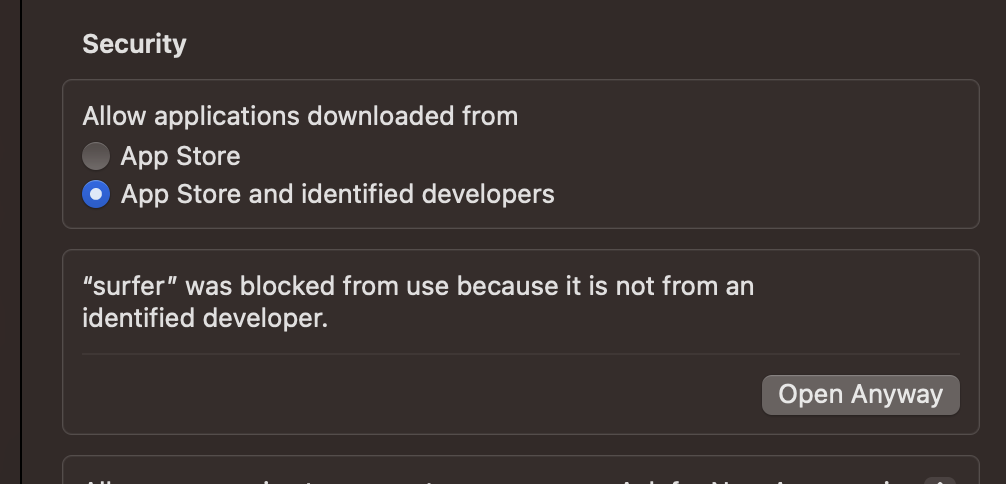
- Double-click the surfer icon (not the surver icon). You will get a warning that the application cannot be opened because it is from an unidentified developer. This is fine, click 'Ok'.
- Click the Apple menu in the top-left of the screen, open System Settings, and select Privacy & Security from the menu on the left.
-
Scroll down to the Security section. Change the setting to allow applications from identified developers, and then click "Open Anyway" on the alert for surfer:
-
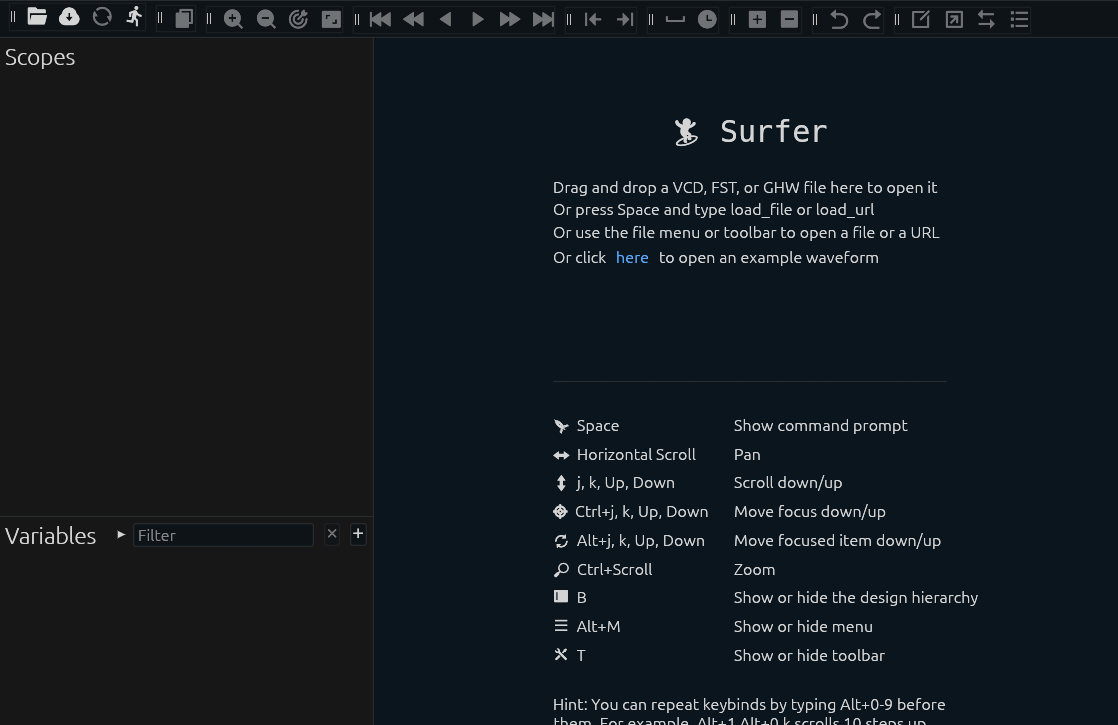
Now try opening surfer again. You should see the initial start screen open:
- Set up the rest of our course tools on Attu:
- Log into Attu (check out the CSE351 guide to Linux if you've never done this before, it's super helpful!)
- Add the course tools to your Linux environment by running this command:
echo 'PATH="/cse/courses/cse369/software/bin:$PATH"' >> ~/.bash_profile
There won't be any output. - Either reload your profile with the command
source ~/.bash_profileor open a new terminal. - Confirm you can access Quartus by running this command:
quartus_sh -v
You should see the following output (possibly with different dates and version numbers):Quartus Prime Shell Version 25.1std.0 Build 1129 10/21/2025 SC Lite Edition Copyright (C) 2025 Altera Corporation. All rights reserved.
- Confirm you can run IcarusVerilog by running this command:
simulate-verilog
You should see the following output:Simulate simple Verilog designs and automatically dump all variables to an FST waveform file. This file can be open with wave viewers such as GTKWave (https://gtkwave.github.io/gtkwave/) or Surfer (https://surfer-project.org/) Usage: simulate-verilog [--server] [--dumpfile OUTPUT_FILENAME] TESTBENCH_MODULE_NAME VERILOG_SOURCE_FILES...
Linux
The full Quartus and ModelSim suite can be installed on Linux, but are outside the scope of what our course staff can support. It is recommended you follow the MacOS instructions instead, as these are relatively platform agnostic.
That said, if you're feeling spunky (you're a native Linux user, of course you're spunky), you can download installers from here.