Lab 12: Word Guessing
Due Date: Must be checked off OR submitted to Canvas by the end of Friday, 2/16/2018.
Goals
- Learn how to work with text and Strings.
- Practice creating separate "stages" of a program.
Setup
Download or copy this word_guessing.pde file as a starting point.
Word Guessing
We are going to create a program to play a word guessing game between two human players. The "mastermind" will provide a "secret phrase" and the player will guess what it is using feedback received from previous guesses.
We break this game down into three separate "stages" in a manner similar to the "pages" from the Jumping Monster homework:
- The game asks the mastermind to enter the secret phrase. The keystrokes should be shown on the screen as the mastermind enters them. Once the mastermind presses [Enter], the secret phrase should be stored away and hidden from the screen.
- The game asks the player to guess the secret phrase. The length of the secret phrase should be shown. If the player guesses incorrectly, the game should give feedback as to how many letters of the guess were correct (correct letter AND position).
- The player has correctly guessed the secret phrase. The secret phrase should be shown as well as the number of guesses it took the player. If the user presses any key in this stage, the game should reset.
The screenshots shown below are JUST A SUGGESTION! As usual, feel free to customize your program's appearance as desired as long as the required elements are included.
Step 0: Working with Strings
String (note the upper-case 'S') is a datatype that consists of many characters put together.
For example, the string "hi!" is just the characters 'h', 'i', and '!' next to each other.
An example string variable declaration and initialization is:
String str = "I am a string";
The plus sign (+) is the concatenation operator and can be used to add a character or another string to the end of a string:
String str = "hello"; // str holds "hello"
String tmp = ",";

str = str + tmp;      // str holds "hello,"  (added String var)
str = str + ' ';      // str holds "hello, " (added character)
str = str + "world!"; // str holds "hello, world!" (added String literal)
To read an individual character from a String, we use the following charAt notation.
Note that this comes after a String variable name and a dot (.) and that the character positions are numbered from left-to-right starting at 0.
String str = "hello";
char c1 = str.charAt(0);  // stores 'h'
char c2 = str.charAt(4);  // stores 'o'
Additionally, you can get the length of a string as follows:
String str = "hello";
int len = str.length();  // stores 5
Step 1: Reset
- Complete the function
reset()found at the bottom ofword_guessing.pde(CODE BLOCK 9).
This function should reset the game by setting variables to "default" values.
Which variables do we need to change and to what values will you set them?
Notice that this function is called at the end of setup().
Step 2: Test User Keyboard Input
- Complete the second
else ifblock of code inkeyPressed()(CODE BLOCK 7).
The condition has already been given to you and checks to make sure that the key pressed is one of the representable ASCII characters.
In this block of code, you should add the pressed key to the end of the variable guess.
To test to make sure that it is working, you should add a statement in draw() to display the current value of guess (either on your drawing canvas or on the console).
Now when you type, you should be able to see guess grow.
Note: The first else if block handles the [Backspace] and [Del] keys for you, so that the user can delete characters when mistakes are made.
We suggest that you try to understand how it works.
Step 3: Program Stage 0
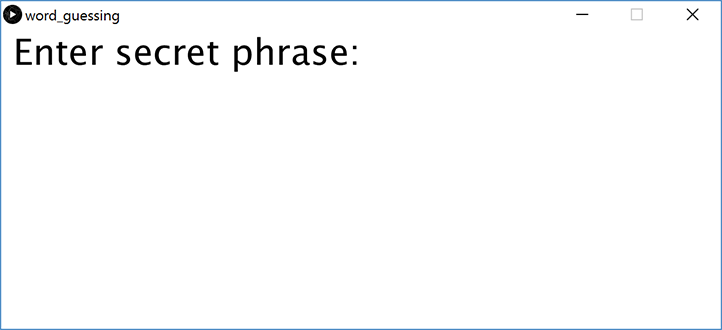
- Complete the Stage 0 code block in
draw()(CODE BLOCK 1). - Complete the
stage == 0code block inkeyPressed()to handle the user pressing [Enter] while in Stage 0 (CODE BLOCK 4).
In Stage 0, the game should prompt the mastermind to enter the secret phrase.
One possible way to do this is shown in the image to the right.
Note: you should not use the variable message in Stage 0.
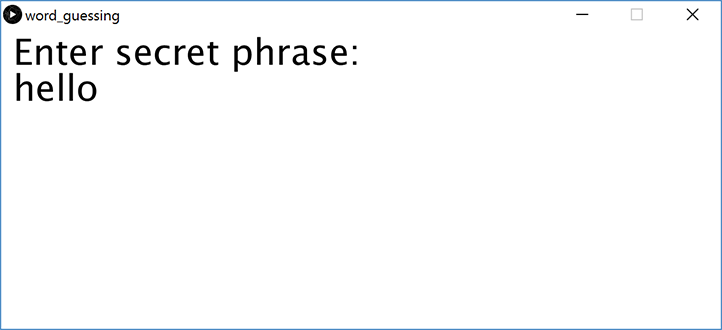 As the mastermind types, the game should display the current value of
 guess on the drawing canvas so the mastermind can see what has been typed so far.
This should be similar to the testing portion of Step 2 above.
What should happen once the mastermind presses [Enter]?
Write out the statements that correspond to this behavior in the stage == 0 conditional block within keyPressed().
Step 4: Program Stage 1
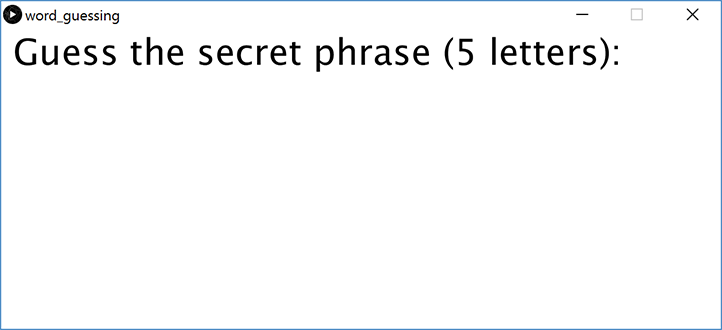
- Complete the Stage 1 code block in
draw()(CODE BLOCK 2). - Complete the
stage == 1code block inkeyPressed()to handle the user pressing [Enter] while in Stage 1 (CODE BLOCK 5).
In Stage 1, the game should prompt the player to guess the secret phase while displaying how many letters are in the phrase (see example image to the right).
As the player types, the game should display the current value of guess on the drawing canvas so the player can see what has been typed so far.
What should happen once the player presses [Enter]?
We only want to transition to Stage 2 if the guess was correct.
Here is a neat benefit of abstraction – even though we haven't written the function guessing() yet, we can still design other parts of our program using it if we just assume that it will work as described!
Your code block 5 should be written to include a call to guessing(), remembering that it returns a boolean value.
Step 5: Implement Guess Checking
- Complete the function
guessing()(CODE BLOCK 8).
Notice that its return type is a boolean.
If the variable guess matches the variable answer, then it should return true, otherwise it should return false.
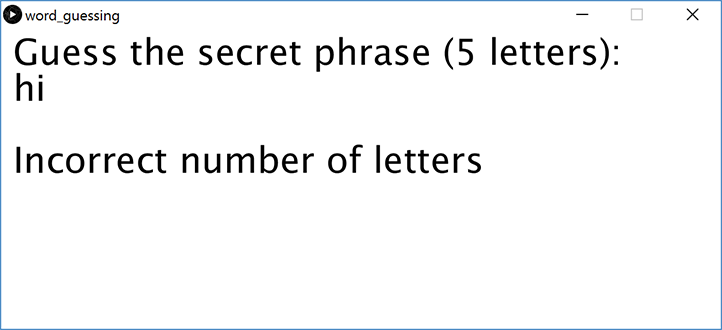 Despite being told how long the secret phrase is, sometimes the player will either miscount or purposely ignore this hint, so we want to do some input checking first.
If the length of
Despite being told how long the secret phrase is, sometimes the player will either miscount or purposely ignore this hint, so we want to do some input checking first.
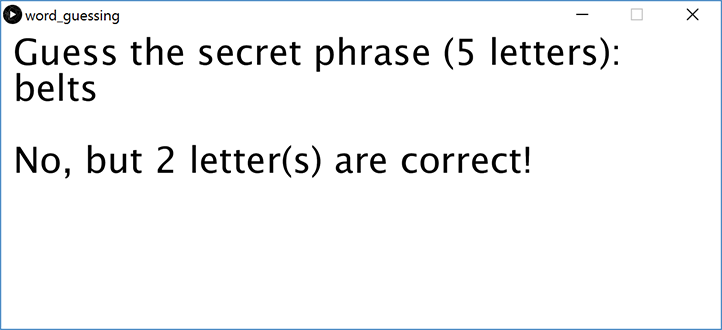
If the length of guess doesn't match the length of answer, then you should display a message to the user using the variable message (in the image to the right, message = "Incorrect number of letters").
Update your Stage 1 code in draw() to display message on your drawing canvas.
How to we compare two different strings?
Unfortunately, the equality operator (==) works differently on String so we can't use it (the reason why is beyond the scope of this course; ask a TA if curious).
Instead, let's write a loop that will compare each character of guess against the same character position in answer (== will work with characters).
Use the local variable correct to track how many letters were correct.
 We know that the guess was correct if the value in
 correct is equal to the length of the secret phrase!
If the guess was not correct, then we should display an appropriate message telling the player so and how many letter were correct (see image on right).
If the guess was correct, then we should change to Stage 2.
You should only report the number of correct letters if the guess was the appropriate length. You should, however, count the total number of guesses including guesses of inappropriate lengths.
Step 6: Program Stage 2
- Complete the Stage 2 code block in
draw()(CODE BLOCK 3). - Complete the
stage == 2code block inkeyPressed()to handle the user pressing [Enter] while in Stage 2 (CODE BLOCK 6).
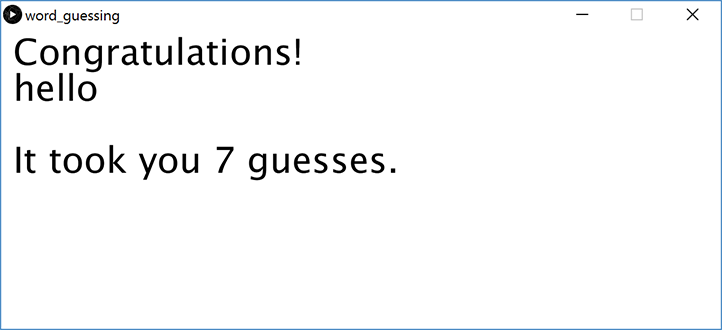
In Stage 2, the game should congratulate the player and display both the secret phrase and the number of guesses that it took (see image on right).
Finally, complete the keyPressed() function so that the game will reset if the user presses [Enter].
Example Solution
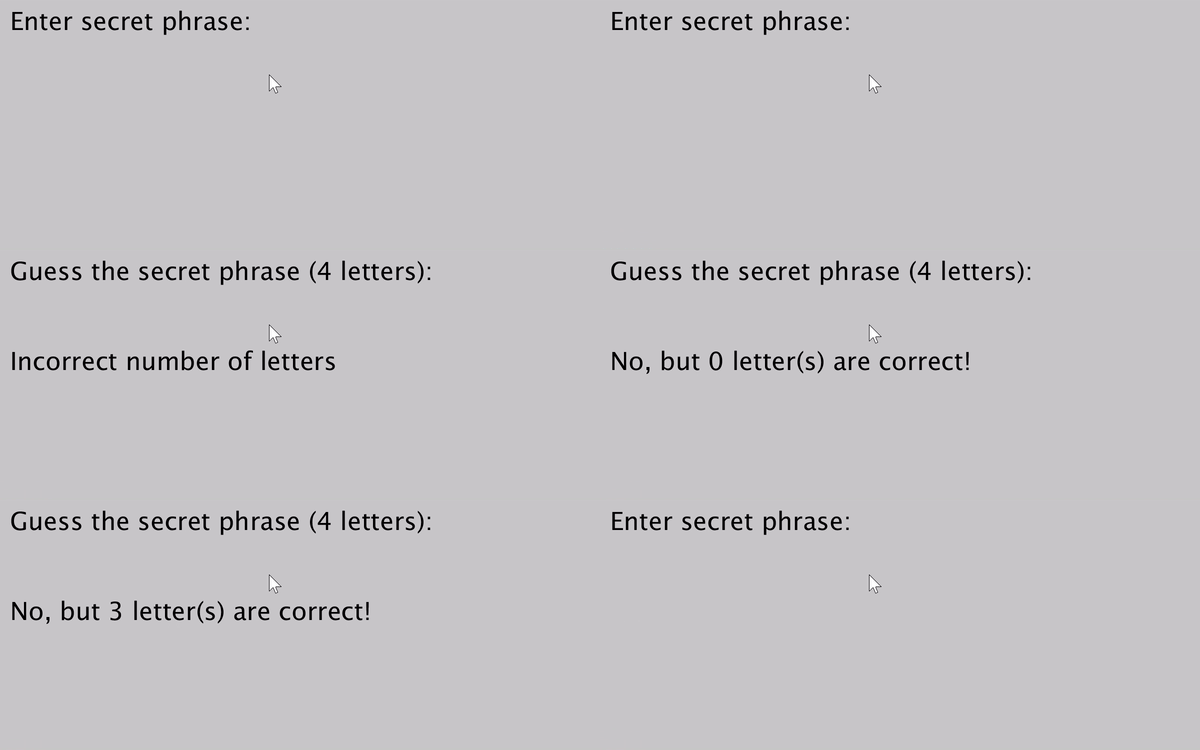 A working solution is shown on the right.
You do not need to follow this exact layout.
A working solution is shown on the right.
You do not need to follow this exact layout.
In order to better visualize what's going on, extra code was included to display the keys that are being pressed in red in the lower-left corner of the image, including "ENT" for Enter and "BACK" for Backspace.
Here's what's being shown in the gif:
- "hello" is entered and then erased (deleting works!).
- "hope" is entered as the secret phrase (confirmed by pressing Enter).
- "hi" is entered as a guess, but it's not the correct length.
- "plum" is entered as a guess. Although it shares the letter 'p' with "hope", it is not in the correct position, so "0 letter(s)" are matched.
- "help" is entered as a guess. The first 'h' matches.
- "home" is entered as a guess. 'h', 'o', and 'e' match.
- "hope" is entered as a guess and activates Stage 2.
- "again" is entered, but ignored on Stage 2. Pressing Enter restarts the game.
Checkoff
- Run your program for your TA to see.
- All program elements should be laid out in a reasonable manner on the drawing canvas (all stages).
- Stage 0: (1) Prompts user to enter secret phrase, (2) secret phrase is visible as user types, (3) pressing [Enter] advances to Stage 1.
- Stage 1: (1) secret phrase is hidden, (2) prompts user to guess secret phrase, (3) correctly displays the length of the secret phrase, (4) pressing [Enter] initiates guess checking.
- Guess Checking: (1) notifies user of wrong guess length, (2) properly notifies user of number of correct letters on incorrect guess, (3) advances to Stage 2 on correct guess.
- Stage 2: (1) displays the secret phrase, (2) correctly displays the number of guesses made, (3) pressing [Enter] restarts the game, (4) pressing others keys are ignored.
- Show your code to your TA.
- The
reset()function is completed and called in bothsetup()andkeyPressed(). - Important lines or blocks of code should be commented.
- There should be a block comment at the top describing what the program does and should include the name of your group members.
- All functions, loops, and code blocks should be properly indented.
- The