Gitlab Guide
Throughout CSE 333, you will use Gitlab and git to implement version control on exercises and homework. This also enables collaboration on homework. This guide will help you get started with Gitlab and how to use git effectively in this course.
CSE 333 Gitlab Setup
The following instructions are for connecting your CSE Linux environment (attu or CSE Linux VM) to your Gitlab repo. The later Git Workflow section has tips and tricks for using git as you work on the Homework, including if you are collaborating with a partner.
Find Your 333 Repositories
- Navigate to
Gitlab.
- If you have a CSE NetID, use the green "CSE NetID" button to log in; otherwise, use the white "UW NetID" button.
- In your list of Projects, you should find TWO CSE
333 repositories ("repos" for short):
cse333-26wi-students/cse333-26wi-ex-<netid> and
cse333-26wi-students/cse333-26wi-hw-<netid>.
Click either to enter the web browser interface for that repo.
- The exercise repo will be created shortly after Lecture 1.
- The homework repo will be created at the end of Week 1.
- If you don't see your repos by then, please contact the instructor(s) ASAP to have them created.
Add an SSH Key
This will allow you to access your repo without having to authenticate every time (i.e., no more typing your password!) and will greatly improve your workflow.
- Check to see if your CSE Linux environment (attu or CSE Linux VM)
account already has an SSH key by running:
$ cat ~/.ssh/id_rsa.pub
- If you see a long string starting with ssh-rsa or ssh-dsa, skip to Step 3.
- Generate a new SSH key by running:
$ ssh-keygen -t rsa -C "<netid>@cs.washington.edu"
- Print your SSH key to the terminal by running:
$ cat ~/.ssh/id_rsa.pub
- Highlight and copy the complete key (i.e., starting with ssh- and ending with your username and host).
- Add your SSH key to GitLab:
- Navigate to your SSH Keys page by clicking on your avatar in the upper-right, then "Preferences", then "SSH Keys" in the left-side menu.
- Paste your SSH key from Step 4 into the "Key" text box and give a "Title" to identify what machine the key is for.
- Click the "Add key" button below "Expiration date".
Git Configuration
The git commmand looks for a file called .gitconfig located in your home directory that contains a variety of options that control git's behavior. Some commands (e.g., commit and push) will produce verbose warning messages if certain options are unset; these commands will properly configure git. If you've set up git before, this section can be safely skipped as these commands only need to be run once per user (though running them again won't cause any harm).
-
$ git config --global user.name "<your name>"
-
$ git config --global user.email "<your netid>@cs.washington.edu"
-
$ git config --global push.default simple
Cloning Your Repos
The version of your repository that can be viewed through the Gitlab web interface is the remote repository. You can clone a remote repository to create a local copy. There is no limit to the number of local copies you can clone (on different or even the same computer), but each will be independent of each other without specific updating commands so we recommend working with a single clone.
- Find your repo's URL by navigating to your project's details
page, clicking the blue "Code" button in the upper-right, and then
clicking the copy icon under "Clone with SSH".
- You will want to do this for both your exercise and homework repos.
-
$ git clone <repo url>
- This will copy the remote repo contents into a directory within your current location with the same name as your repo (e.g., cse333-26wi-ex-<netid>).
- The repos may be empty at the beginning of the quarter.
-
OPTIONALLY, you may rename the cloned directory for ease
of navigation without breaking any functionality:
$ mv cse333-26wi-ex-<netid> 333ex
- We recommend cloning your exercise and homework repo in the same parent directory, e.g., ~/333ex and ~/333hw OR ~/cse333/ex and ~/cse333/hw, where ~ is your attu home directory.
Your First Commit
Once you've cloned a repo, you can make modifications to it.
When it's in a state that you want to store/add to its version
history, you need to commit your changes and then
push the commits to the remote repo.
Here, we show you a sequence of commands to add a blank
README.md file to your remote repo; more general
instructions can be found in the Updating Local
and Gitlab Repositories section.
-
First, navigate into the repo that you want to update, e.g.,
$ cd cse333-26wi-ex-<netid>
-
Create an empty file called
README.md.$ touch README.md
-
Print out the status of the repo; you should see 1 new file named
README.md.$ git status
-
Stage the new file for commit.
In this example, it should output
git status: README.md staged for commit.$ git add README.md
-
Commit all staged files with the provided comment/message.
In this example, it should output
git status: Your branch is ahead by 1 commit.$ git commit -m "First Commit"
-
Publish the changes/commit to the remote repo, which should then be
viewable in the web interface (you may need to refresh your browser
window).
$ git push
Developing with Git Workflow
Once you have a made a local copy of your Gitlab repository in the CSE Linux environment (attu or CSE Linux VM), you can now make changes to files your repository locally!
The expected git workflow on this page should suffice for CSE 333, but you can find more details in the Git Community Book.
Updating Local and Gitlab Repositories
Update Local from Gitlab
Navigate to anywhere within your local repository and use the command:
$ git pull
Update Gitlab from Local
.gitignore file is included in your initial repo
that will omit object files (.o files) and text editor
backup files automatically.
You may add more files to be ignored to .gitignore, if
desired.
Make sure that you are in your local repository and that all updates to files have been saved before using the following commands:
-
$ git pull # make sure your local copy is up to date with Gitlab
-
$ git add <files> # stages files to commit to Gitlab
- It is common to navigate to the top-level repository
directory and then use
.(period character) as <files>, which will stage all added/deleted/modified files in the local repo because.represents the current directory. - You should omit any added/deleted/modified files from your git add command that you don't want commited to the Gitlab repository.
- It is common to navigate to the top-level repository
directory and then use
-
$ git commit -m "<message>" # add a descriptive message about your update
-
$ git push # push your changes to Gitlab
Recovery Methods from Weird Git Situations
Keeping your workspace organized is crucial to keeping your workflow smooth, efficient, and as productive as it can be. By making sure to frequently update your local and Gitlab repositories, you reduce the chance of getting into weird situations. Nevertheless, it is common to end up in a "Git spaghetti ball" every so often, so here are some useful survival tips and commands.
Recovering from Local Messiness
The following git commands are ways to manage local changes to your repository before pushing to Gitlab:
- Reset your files to the HEAD of the
branch if you don't want your changes anymore:
$ git reset --hard HEAD
- Reset a single file instead of the entire branch:
$ git checkout HEAD -- <path to file>
- Revert changes that were already committed:
$ git reset --soft HEAD~1
- Stash/hide local changes and revert to a clean working directory:
$ git stash
- Revisit your stashed changes after you're done working on a fix:
$ git stash pop
- Discard the last stashed state:
$ git stash drop
- More info on git stash.
- Revisit your stashed changes after you're done working on a fix:
Reverting to an Old Commit on Gitlab
This is a way to remove a commit that you pushed to Gitlab but no longer like. These instructions take inspiration from Gitlab documentation.
- Log in to the Gitlab web interface and navigate to your repo for CSE 333. On the left menu, hover over "Repository" and then click on "Commits" to view your repo's commits in reverse chronological order.
- Go to the specific commit you want to revert
(i.e., the earliest commit you want to remove) by clicking
on its title:

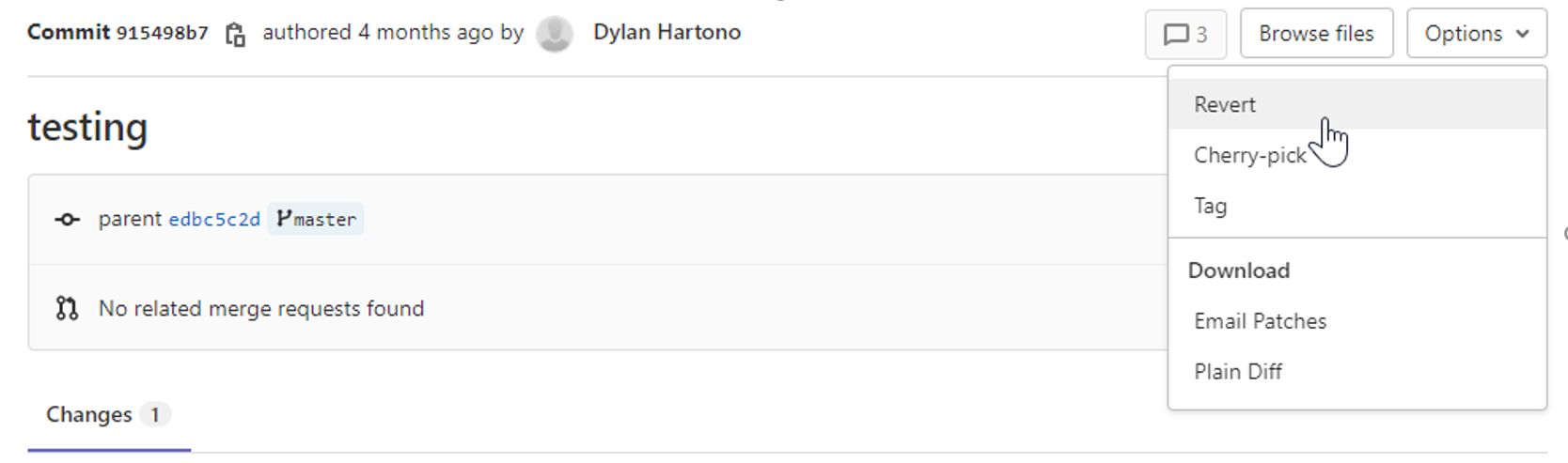
- Click on options on the top-right side of the
page and press revert:
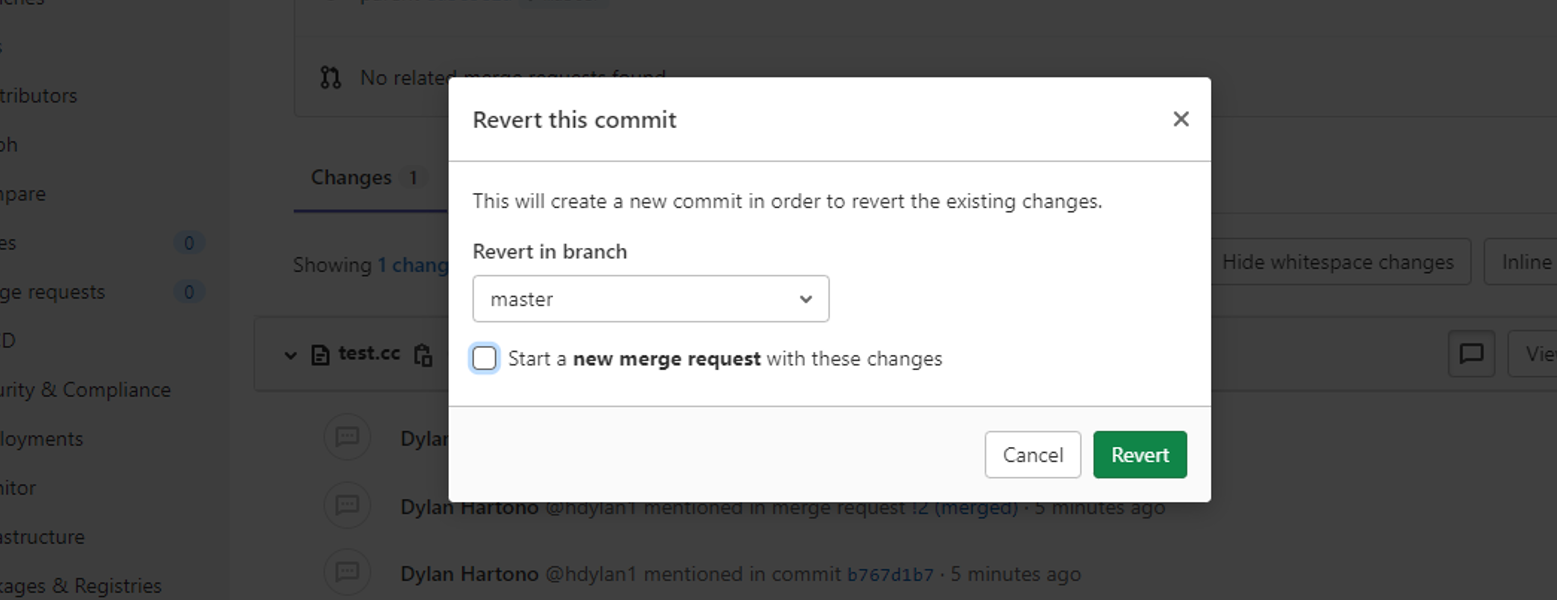
- You won't need a merge request for changing your
own work (unless you want to), so you can unselect the "Start a
new merge request with these changes" checkbox and click
Revert:
- Your repository has been updated!
Don't forget to update your changes in your local repository by
running git pull.
