CSE 331 Homework Library
Due Wednesday, Aug 19 at 11:59pm.
In this homework, you'll extend your inventory ADT from previous assignments into a generic borrowing library. You'll use this as the backend for a library management app with a JavaScript frontend.
Getting started
Get the starter code via gitlab as before (download directory as zip, then unpack it).
(UPDATE 8/20/26: Our gitlab repo is down. Here is a zip of the starter code.)
Most of the files are similar to HWInventory++. The differences are:
library/: a new package replacinginventory/. The interface (Library.java) is an enhanced, generic version of theInventoryinterface from previous homeworks. It is parameterized by a typeTthat extendsLibraryItem(seeLibraryItems.java).libraryManagement/LibraryManagementApp.java: a new starter file for your web app. Unlike the Inventory web app, it serves a JSON API rather than rendering HTML pages.static/: a new directory containing the HTML, JavaScript, and CSS files that the browser loads. Replaces the HWInventory++templates/directory. (There are no JTE templates in this assignment).
After unpacking the hwLibrary starter code, you should copy the contents of your
InventoryImpl.java into LibraryImpl.java. Be careful when copying, because
hwLibrary uses a different package name. The starter code has the correct
package declaration (package library;), so be careful not to overwrite it when
pasting in your code. Then rename your class to LibraryImpl to agree with the
new filename.
Your copied code will not compile immediately because the interface has been renamed and generic-ified. You will need to make the changes described in Task 1 below.
If you are using VS Code, be sure to open the hwLibrary folder as the
"root" folder in your editor, or else it will not be able to find the
dependencies in lib/.
Task 1: Implement Library
A Library<T> stores items of some type T. The starter code provides several
library item types in LibraryItems.java, including Book, BoardGame,
Laptop, and Tool. For example, a Library<Book> stores books, while a
Library<Laptop> stores laptops.
Library transactions
Like Inventory, Library maintains an append-only transaction history.
However, library transactions can now have three different types:
ADDrecords newly owned copies of an item. Both the number of copies the library owns and the item's available quantity increase.BORROWrecords copies borrowed by a particular username. The item's available quantity decreases, but the number of copies owned does not change.RETURNrecords copies returned by a particular username. The item's available quantity increases, but the number of copies owned does not change.
At every point in the history, the available quantity of an item must be between 0 and the total number of copies added so far, inclusive. A user also cannot return more copies of an item than that user currently has borrowed.
Read the specifications for all methods in Library.java carefully before
implementing them.
The interface includes operations for modifying the library, looking up item quantities, querying the items borrowed by a user, and inspecting transaction history.
Also pay close attention to the runtime requirements stated in Library.java.
Depending on the representation you used for InventoryImpl, you may need to
redesign your representation rather than scanning the complete transaction
history for every operation.
When you change your code, be sure to update your abstraction function (AF)
and representation invariant (RI) comments, and update your checkRep()
method to check the new invariants.
Task 2: Test your library
As in the Inventory homework, your tests are split across two files:
LibrarySpecTest.javacontains specification-based tests that rely only on behavior guaranteed by theLibraryspecification.LibraryImplTest.javacontains any additional implementation-based tests that rely on choices specific to your implementation or behavior left unspecified by the interface.
Copy and adapt your specification tests from InventorySpecTest.java into
LibrarySpecTest.java, then add tests for the new functionality introduced by
Library. If you changed your representation or method implementations in
Task 1, make sure your tests thoroughly exercise the updated behavior.
Because Library is generic, your specification tests should exercise the
library with at least two different types of LibraryItem provided in
LibraryItems.java (e.g., Book and Laptop). This helps verify that
your implementation works generically rather than depending on a particular
item type.
As in previous homeworks, only your specification tests in
LibrarySpecTest.java will be graded. We will run them against your
implementation, the staff implementation, and possibly deliberately buggy
implementations. Your specification tests must pass on any correct
implementation while still being thorough enough to detect incorrect ones.
LibraryImplTest.java will not be graded and may be left blank if you wish.
Task 3: Library Management App
In this task, you will build a browser-based frontend for your library
management application. We have provided substantial starter code, and part of
your task is to understand the code well enough that you can extend it as
described below. The Java backend is in
libraryManagement/LibraryManagementApp.java. It uses your Library
implementation from Task 1 to store the library's items and keep track of which
items each user has borrowed.
The frontend is contained in static/index.html, static/index.js, and
static/index.css. The starter code frontend implements part of the required
functionality for you: logging in, browsing the catalog, and logging out.
It will be your job to finish the rest.
Architecture
In HWInventory++, the server generated complete HTML pages using JTE templates. Every user action submitted an HTML form, the server processed it and rendered a new page, and the browser loaded that new page.
In this assignment, the architecture is different:
- The backend (still Java/Javalin, but no JTE) exposes a set of JSON API routes.
Each route receives a request, processes it using your
Libraryimplementation, and returns a JSON response rather than an HTML page. - The frontend is written as a separate HTML file and JavaScript file (and an
optional CSS file for styling). The JavaScript sends requests to the backend
using
fetch, receives JSON responses, and dynamically updates the page. - The HTML page itself is loaded once. Moving between different views of the application should be handled by JavaScript rather than by asking the server to render a new page.
The backend exposes five API routes. The first four are written for you. One of
your tasks is to implement the /api/add route.
GET /api/itemsreturns all items in the library. For each item it reportsavailable, the number of copies currently on the shelf, andowned, the total number of copies the library has. Note that these two quantities may differ because some copies are checked out.GET /api/rentals?name=...returns the items currently borrowed by the given user.POST /api/checkoutattempts to check out one or more selected items for a user.POST /api/returnattempts to return one or more borrowed items for a user.POST /api/addrecords new copies the library now owns, increasingownedandavailabletogether. It is also possible to add copies of items that were not previously owned by the library.
All three POST routes expect the same JSON request body: a username and a map
from item names to quantities. For example:
{
  "name": "alice",
  "items": {
    "Kung Fu Panda": 1,
    "Chainsaw": 2
  }
}
You should study LibraryManagementApp.java, index.html, and index.js
together to understand how the frontend and backend fit together.
Required functionality
Your library management app must allow a user to:
- Log in by entering a username.
- Browse all items in the library and see the currently available quantity of each item.
- Select a quantity of one or more available items and proceed to checkout.
- Review the selected items before completing the checkout.
- Check out the selected items.
- View My Rentals, which displays the items currently borrowed by the logged-in user and the quantity of each item they have borrowed.
- Select a quantity of one or more borrowed items and return them.
- Open a Librarian view listing every item and how many copies the library owns.
- Add copies of one or more existing items from the Librarian view, and add an item the library does not own yet by entering a name and a quantity.
- Navigate between the Browse, My Rentals, and Librarian views while logged in.
- Log out and return to the login view.
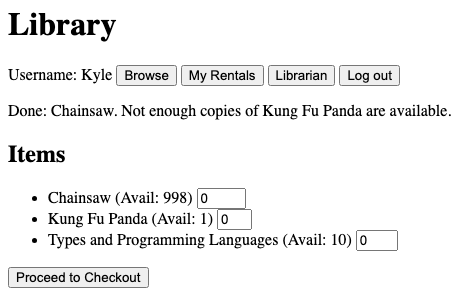
- Display useful feedback when an operation succeeds or cannot be completed.
Your application does not need to match the exact style or wording of the staff solution, but all of the functionality described above must be present.
Working with the frontend
The provided starter code demonstrates many of the JS web development techniques you will need to use. See the guide on Web Development with JavaScript for more information about how to build this style of web application.
Your application should handle inputs and API errors reasonably. An invalid operation should not cause the frontend to stop working. Instead, display a useful message to the user when an operation cannot be completed.
Note that the backend applies each item in a request on its own, so a checkout or a return can partly succeed. In that case, the items that succeeded and failed are recorded and returned to the caller. Failed items also come with a message. Your app should make clear which items went through and which did not.
Example scenario
The following scenario demonstrates the required functionality. Your application does not need to look exactly like the staff solution, but it should support the same logical behavior.
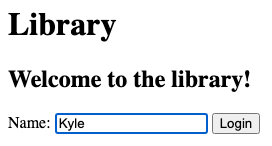
Logging in and browsing the library
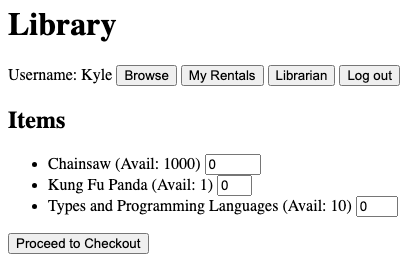
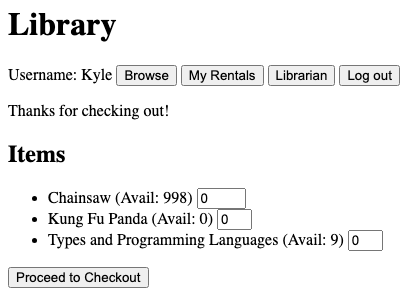
A user begins on the login page and enters their username. After logging in, they are taken to the Browse view, which displays the items in the library and the number of copies currently available.
Checking out an item
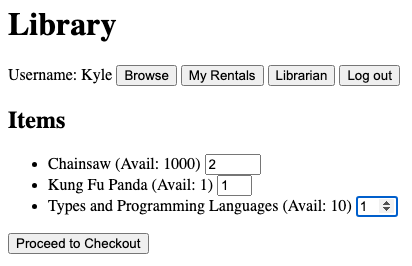
The user selects the quantity of one or more items they would like to borrow and proceeds to checkout.
The checkout page displays the items and quantities the user selected, so they can review them.
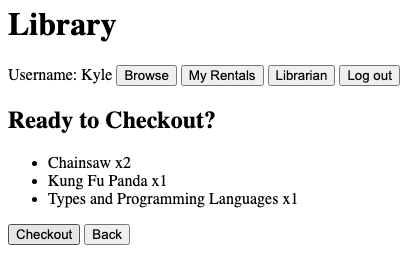
After the user completes the checkout, the library records the borrowed items and the Browse view updates to show the new available quantities.
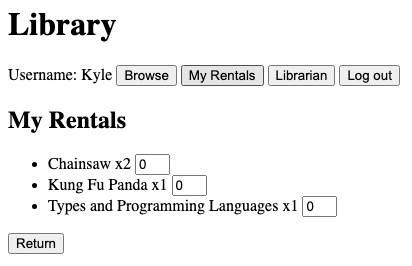
Viewing rentals
The user can select My Rentals to see each item they currently have borrowed and the outstanding quantity of that item.
Returning an item
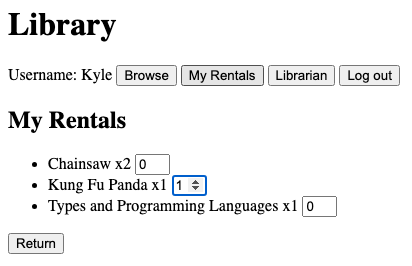
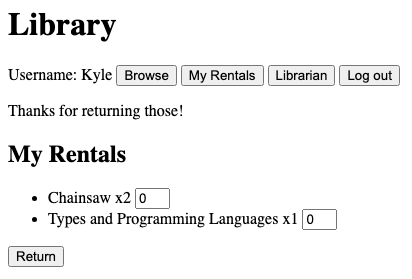
From My Rentals, the user selects how many copies of an item they would like to return. After the return succeeds, the rentals view updates to show the user's remaining borrowed items.
If the user returns all copies they had borrowed, that item no longer appears in My Rentals.
Adding items as a librarian
The Librarian view lists the current items owned by the library, together with their quantities.
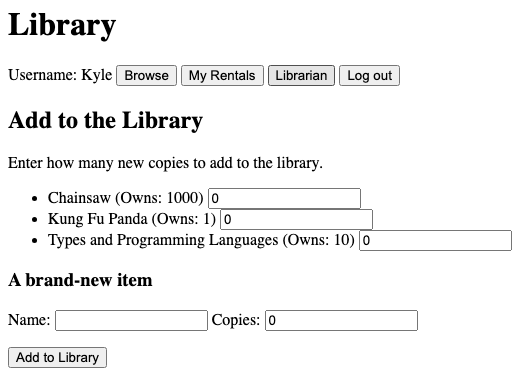
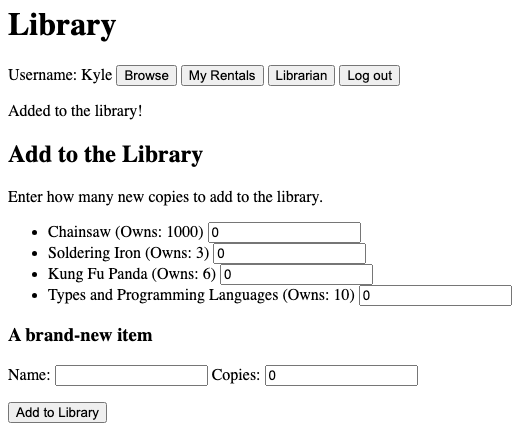
The librarian can add copies of items already in the catalog, or add an item the library has never owned by typing its name and a quantity, or do both at once.
Logging out
The user can select Log out at any time while logged in. Logging out returns the application to the login view.
Submission
Submit the following files to the Homework Library assignment on Gradescope:
LibraryImpl.javaLibrarySpecTest.javaLibraryImplTest.javaLibraryManagementApp.javaindex.htmlindex.jsindex.css
You can either upload these files individually on Gradescope, or run make submission to bundle
them into a submission.zip and upload that.
You should not modify or submit Library.java, LibraryItem.java, or LibraryItems.java.
We have set up a Gradescope autograder that will compile and run your code. It will run your tests on your own code and show you the results. Passing all the autograder tests does not guarantee your code is correct or high quality.