CSE 331 Homework: Inventory++, on the Web
Due Friday, August 14 at 11:59pm.
In this homework you will extend the inventory you built in the last homework with new features and turn it into a web application.
Getting started
Get the starter code via gitlab as before (download directory as zip, then unpack it).
Most of the files are similar to the previous homework. The differences are:
Inventory.java: We have changed the interface by adding several new methods, and changing the specification slightly for some existing methods.InventoryWebApp.java: a new starter file for your web apptemplates/: a new directory for your JTE templates (part of the app)
After unpacking the starter code, you should copy the contents of your
InventoryImpl.java and test files from the previous homework into the corresponding
starter files provided. Be careful when copying, because this homework uses Java
packages. We have included the correct package declarations for you in the starter code,
but you must be careful not to overwrite them when copying your code from the previous
homework.
Your code will not compile against the updated Inventory.java interface until you have
added the new methods in Task 1 below.
If you are using VS Code, be sure to open the hwInventory++ folder as the
"root" folder in your editor, or else it will not be able to find the
dependencies in lib/.
Task 1: Implement the new Inventory spec
We have made the following changes to the Inventory.java interface:
- new method:
renameItem(oldItem, newItem) - new method:
correctTransactionQuantity(index, quantity) - new method:
getTotalReceived(item) - new method:
getTotalSold(item) - new method:
getFullHistorySize() - new method:
getTransactionByIndex(index) - updated spec:
getItemQuantity(item)(now has a running time requirement)
Read the specifications for these methods carefully in Inventory.java.
Now, starting from your copied solution from the previous homework, update your implementation to satisfy the new specification. Note that some of the old and new methods are specified to achieve a certain running time. Depending on your choice of data structures in the previous homework, you may need to change your code to use data structures that can implement the operations you need within the specified running time bounds.
Also recall that big oh running time always implicitly includes "or better". In particular, if the spec says "must run in O(log n)" then running in constant time also satisfies that spec. You may assume that hashing based data structures run in constant time. You may also ignore code that only runs when "slow checks are enabled" (e.g., slow parts of checkRep) when analyzing running times.
When you change your data structure, be sure to update your abstraction function (AF)
and representation invariant (RI) comments, and update your checkRep() method to
check the new invariants. Then you will also want to revisit any existing methods and
ensure that they still work as specified with your new choice of data structure.
Task 2: Update your tests
If you haven't already, copy over your specification tests from the previous homework into the provided starter file, being careful to preserve the package declaration from the starter code.
Then write specification tests for the new methods, adhering to 331 testing heuristics and coverage standards. You should also update your tests for any existing methods from the previous homework so that they also maintain 331 testing heuristics and coverage standards.
As with the previous homework, specification tests must pass on any correct implementation.
If you would like to test additional behavior of your implementation that is not
guaranteed by the specification, you can do so in the ...ImplTest.java files. The
implementation test file will not be graded, and you may leave it blank if you wish.
Task 3: The web application
In this task, you will build a small "circa 1995" web application in
InventoryWebApp.java that lets WorstBuy™ employees interact with your inventory via a
web browser. By "circa 1995", we mean that the application will not have any Javascript
running in the browser.
Libraries used
We will use the Javalin web server framework for Java and JTE templates to build the application. The starter code contains a demo showing the basics of how Javalin and JTE work together.
- Javalin server framework. This library makes it easy to define web servers in Java that respond to different routes and requests. For example, when a user presses a button to submit a form, Javalin will call the Java method registered to handle that event. For more information see the demo app below and the Javalin docs.
- JTE templating engine. This library makes it easy to create HTML responses that are generated by plugging some data variables into a template. Again, see the demo below and the JTE docs.
For additional guidance on Javalin and JTE, see also the Web Development without JS resource.
Starter code walkthrough
The starter code app is a web app with similar functionality to the simple terminal application from the previous homework's starter code. It allows you to increment and decrement a number.
To run the starter code app, use make run or press the word "Run" right above main()
in VS Code when looking at InventoryWebApp.java. (If you use the makefile, you must
finish task 1 first. Otherwise you will get an error because the implementation is missing
the new methods from the updated interface.)
The demo serves a page at http://localhost:7070/ with a counter and two HTML
forms: one to increment and one to decrement. Each form POSTs to a different
path, the handler updates the counter, and the browser is redirected back to
/. The app does not use any Javascript.
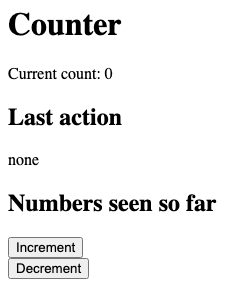
When you first load the page, you see the initial state below. The app keeps track of a single integer counter which can be incremented and decremented. In addition, it keeps track of the set of all the values that the counter has ever had. The page also displays the "last action" that the user took, which can be "None" if there is no last action.
Pressing Increment submits a form to /inc. The handler increments the count,
adds the new value to seen_numbers, and redirects back to /?last_action=increment.
The browser reloads the page and you see the updated state.
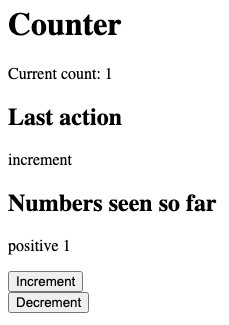
count=1, last_action="increment", and 1 has been added to the seen-numbers list.
Now pressing Decrement does the analogous thing: it POSTs to /dec, which
decrements the count and redirects back with last_action=decrement.
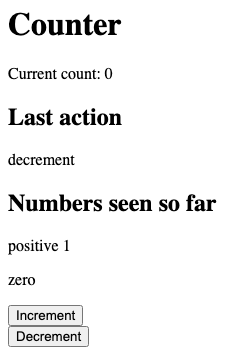
count is back to 0, last_action="decrement", and 0 joins the seen-numbers list.
Pressing Decrement once more takes the count below zero.
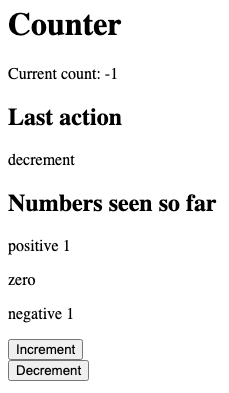
count=-1, and -1 has been added to the seen-numbers list. Notice how the template renders negative, zero, and positive values differently.
The starter code shows how to set up JTE to compute the HTML to send to the client. For
example, the index method (which generates the homepage) passes data from the Java route
handler to a .jte template using a Map. This template is then rendered with
ctx.render(...). As another example, the inc() and dec() methods are called when the
user presses the increment and decrement buttons. They make changes to the server's
state and then redirect the user back to the homepage so that they can perform another
action. Notice how inc() and dec() pass information back to the homepage via a query
parameter (the part of the argument to redirect() after the ? character).
You should study InventoryWebApp.java and templates/demo.jte together to
see how the pieces fit together. Once you are satisfied that you understand it,
you should delete the demo and replace it with your real application.
Inventory++
Your task is to build a web application for keeping track of an inventory. The application will have three separate pages: one for the inventory (main page), one for item details, and one for transaction details. You do not need to match the style or wording of our example interface exactly, but all the same functionality must be present.
Inventory page
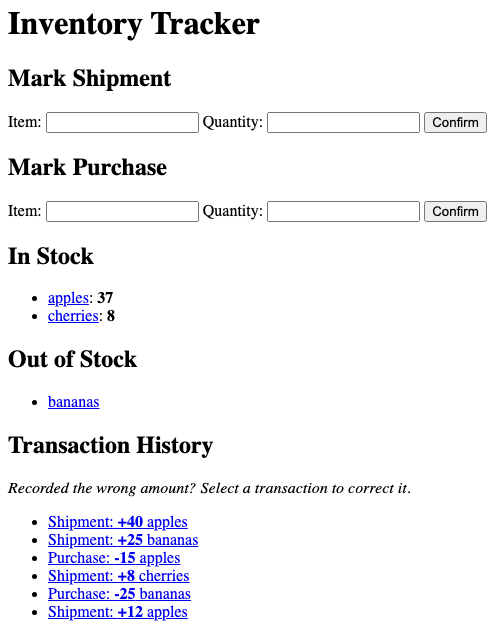
The inventory view allows a user to see the quantity of all items in and out of stock, as well as a full log of the transaction history.
The inventory view supports the following functionality:
- Add a shipment: A user gives an item name and quantity.
- Add a purchase: A user gives an in-stock item name and quantity.
- View item: A user can view details about an item recorded in the inventory.
- View transaction: A user can view details about a transaction recorded in the inventory transaction history.
Item page
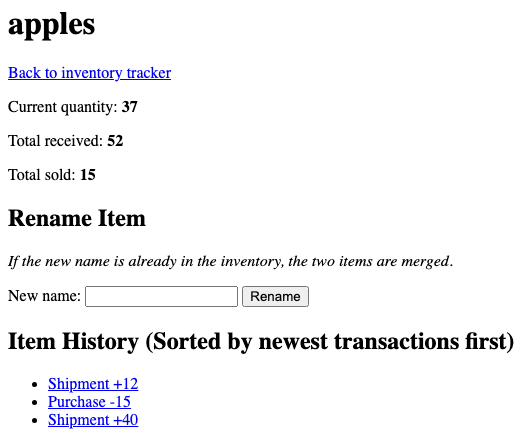
The item view displays detailed information about an individual item, including its current quantity, total units received, total units sold, and a complete history of all related transactions, sorted from newest to oldest.
The item view must support the following functionality:
- Rename item: Users can update an item's name. Renaming an item updates the item record and all related transaction records.
Transaction page
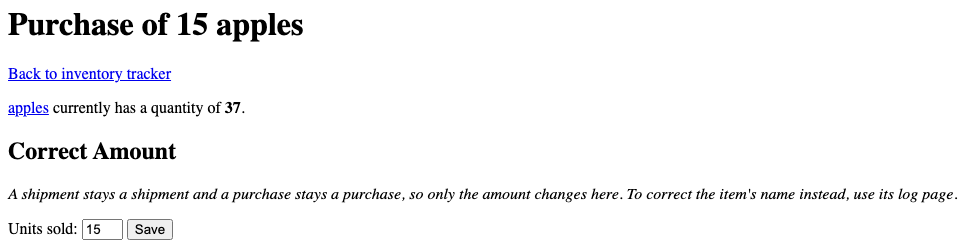
The transaction view allows users to view the details of an individual transaction and update the number of units if a correction is needed, such as when an input error was made. It also displays the current quantity of the associated item.
The transaction view must support the following functionality:
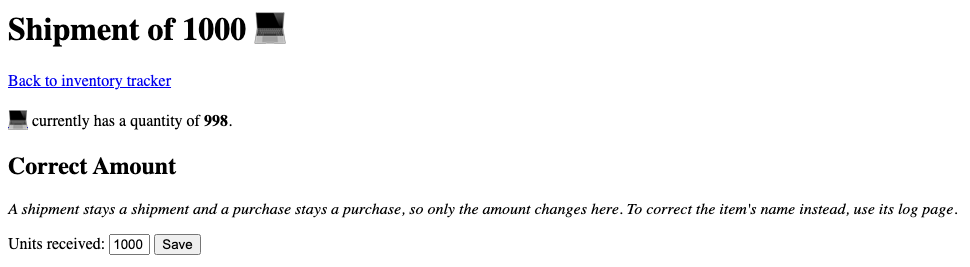
- Correct amount: Users can update the number of units in an existing transaction. The correction updates the transaction record and adjusts the associated item's current quantity accordingly.
Web app technology
Every operation that updates the state of the application is performed by submitting an
HTML <form> via POST. Each form's action attribute specifies which path to POST to,
and the form's <input> elements carry the data (e.g., item name, quantity). The form's
<button type="submit"> (or <input type="submit">) is what the user clicks to submit
it.
After processing a POST request, your handler should redirect the browser
back to the appropriate page using ctx.redirect(...) rather than directly
rendering a template. This pattern prevents the browser from resubmitting the
form if the user refreshes the page. Without this, refreshing the page after
submitting a form would resubmit the form.
If you want to show a status message after an action (e.g., "Recorded shipment of 10 🍎." or "Not enough 🍎 in stock for that purchase."), you can pass it as a query parameter on the redirect URL and then read it back when rendering the page. For example:
// in the POST handler:
ctx.redirect("/inventoryTracker?msg=Welcome!");

// in the GET handler:
String msg = ctx.queryParam("msg");
// pass msg to the template so it can display the message
The counter demo in the starter code shows this pattern in action: after
incrementing or decrementing, it redirects to /?last_action=increment (or
decrement) so the rendered page can show which button was most recently
pressed.
JTE templates
Your HTML pages should be generated by JTE template files in the templates/
directory. A template is a .jte file that looks like regular HTML with
embedded expressions and control flow. You pass data from your Java route
handler to the template using a Map:
Map<String, Object> model = new HashMap<>();
model.put("item", "apple");
model.put("quantity", 4);
ctx.render("something.jte", model);
In the template, you declare the parameters you expect, then use them:
@param String item
@param int quantity

<p>There are ${quantity} of the item: ${item}.</p>
The ${...} syntax automatically escapes HTML special characters, so you do not need
to worry about an item name that contains HTML special characters breaking the page. This
is handled for you.
JTE also supports conditionals and loops:
@if(quantity > 0)
    <p>Item is in stock</p>
@else
    <p>Item is not in stock</p>
@endif

@for(var item : inventory)
    <li>${item.name()}</li>
@endfor
See the JTE documentation and templates/demo.jte in the
starter code for more examples.
Hidden form fields
Sometimes you need to send data that the user has already provided. For example, when renaming an item, the form needs to submit the old item name, even though the user doesn't have to type that in again. You can use a hidden input for this:
<input type="hidden" name="oldItem" value="${item}">
This sends the item's old name as a form parameter when the form is submitted, without showing a visible input field to the user.
Error handling
Your web application should handle all inputs reasonably and with decent error messages. For example:
- If a user tries to purchase more units of an item than are currently in stock, the application should not crash, but rather should show a message explaining the problem.
- If the user tries to change the number of units in a transaction to an invalid amount, the application should show a message that the amount is not accepted.
- If a form is submitted with a blank item name, the application should show a message that an item name is required.
Your application should never crash or show a Java stack trace in the browser.
Example scenario
The following scenario illustrates the required functionality. Your application should be able to handle equivalent functionality, though you are free to design the layout and display information differently. Of course, just being able to handle this one example scenario correctly does not mean your code is correct in all cases.
Your 331 knowledge and your entrepreneurial spirit lead you to decide to start a new company WorstBuy™. You carry various items like keyboards, mice, and other forms of technology. The first thing you have to do is open your inventory web app.
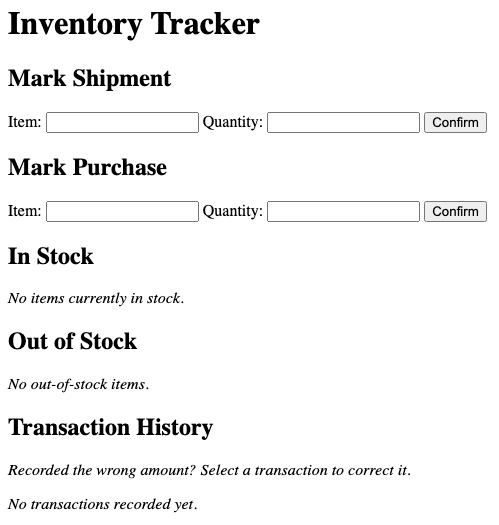
Now you can secure your stock of items, so what better to do with your computer science degree than write a program to help you do so? You receive a shipment of Apple products first, so you record them in your app, doing various checks manually to verify what you're storing.
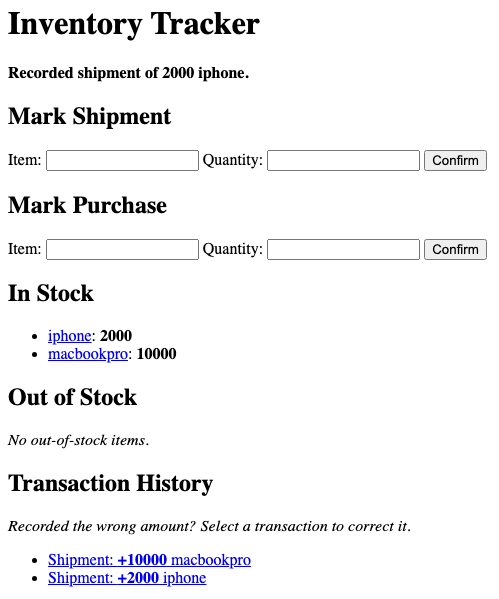
Now that you have some inventory that may make customers mistake you for an Apple store, you think it's time to open shop. Your first customer arrives and it's James! James, as PowerPoint's biggest hater, wants to buy a doc camera from you to use in his lectures. So he places the order to buy it from you but...
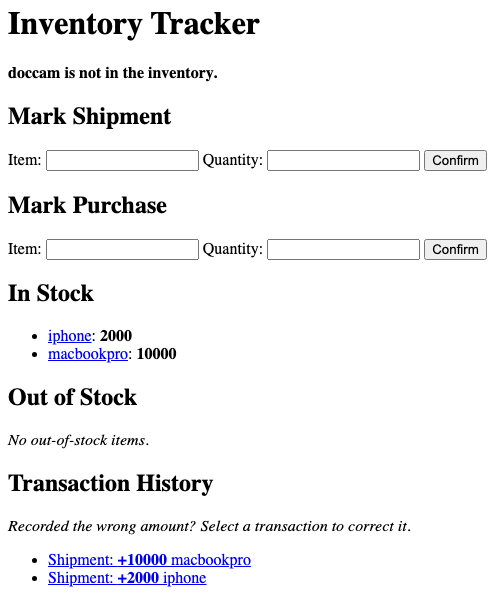
James, being deeply disappointed, asks "my disappointment is immeasurable and my day is ruined, what do you even have?" Using your really cool web app you tell him what items are in stock. Since he already made the trip to your store, James decides to leave here with something. He decides to buy two Macbooks and one iPhone.
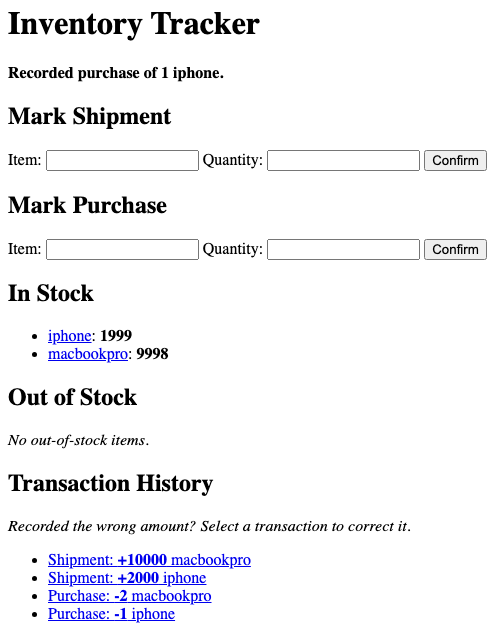
Excited that you had your first sale you check over your inventory and see that it's actually gone through! However, you then remember that Java accepts emojis as strings, so why not use emojis for your products? You open up the item view for Macbook Pro and change the name to 💻.
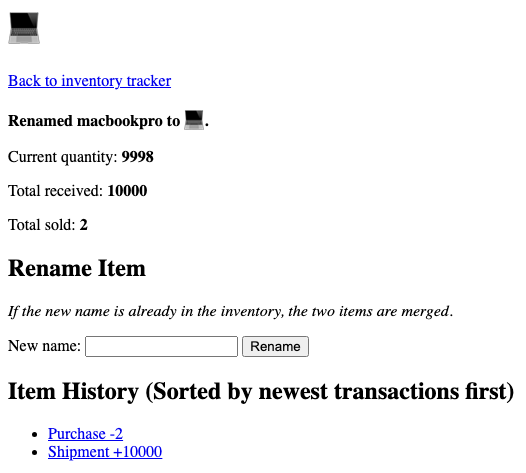
A few minutes later, after stocking the shelves with the remaining Macbook Pros, you realize your earlier Macbook Pro shipment amount was off. You ordered a shipment of 1000, not 10000, so you open up the transaction view and change the amount. With your first sale done and the inventory double-checked, you decide to call it a day and close up shop.
Correctness and code quality
As with the previous homework, you are held to the 331 correctness and code quality guidelines.
You do not need to write JUnit tests for the web application. Course staff will grade the web application by running it and trying it themselves.
Written questions
Submit a short text file called ANSWERS.txt in the top level directory answering the questions
below.
- Briefly describe what changes, if any, you needed to make to your data structures from the previous homework in order to meet the O(log n) requirement.
- If you changed data structures from the previous homework, briefly describe what other parts of your code had to be updated as a result.
- When renaming an item from an old name to a new name where the new name already exists, explain why it is guaranteed that the merged history for that item still satisfies the invariant that "at no point in the history was any item quantity negative".
Submission
Submit the following files to the Homework Inventory++ assignment on Gradescope:
InventoryImpl.javaInventorySpecTest.javaInventoryImplTest.javaInventoryWebApp.java- Your JTE template files
ANSWERS.txt
You can either upload these files individually on Gradescope, or run
make submission to bundle them into a submission.zip and upload that.
You should not modify or submit Inventory.java.
We have set up a Gradescope autograder that will compile and run your code. It will run your own tests on your own code and show you the results. It will also run one very basic staff test. Passing all the autograder tests does not guarantee your code is correct or high quality.