The content for this lesson is adapted from material by Hunter Schafer.
Objectives
In this bonus lesson, we’ll learn a few useful commands for interacting with Python and Python scripts through a terminal. By the end of this reading, students will be able to:
- Open a terminal in VS Code or JupyterHub
- Use basic commands to navigate file structures
- Be able to run Python scripts and interact with the Python REPL
Setting up
There are no new files to download in this lesson. All relevant examples will use the file structure from Lesson 3.
Terminal
While navigating through the file structure via the tree view in a file explorer or in the VS Code sidebar works well, another method of traversing the files is through the terminal. This will be super handy when you need run a file in a different directory as well as later on, when you’ll need to access data in a different directory.
The first command that will be useful is the pwd command. This will show you your current path, i.e. the current folder that you are executing your commands in. To use this command, type the following into your terminal and hit Enter.
pwd
Food for thought: How does the output of pwd change depending on what your current folder is?
It might also be useful to see what files are also located in your current folder. For this, you should use ls. This should show you the other files and subfolders around you. To use this command, type and enter the following in your terminal:
ls
For example, using the ls command in the lesson3 folder on JupyterHub will result in the following output:
files   count_unique_words.py   filter_long_lines.py
lesson3.ipynb   print_tokens.py
You may notice that files is a different color or highlighting in the output! This is because files is a subfolder whose contents are not directly accessible to us from lesson3. How do we access its contents?
We can use cd, aka, change directory! This command allows you to navigate deeper into a folder or back outside a folder. For example, to navigate inside the files folder, you can type:
cd files
The output should be:
empty.txt poem.txt store.txt
Since there are no differently-colored or differently-highlighted names here, we know that all the files in the files subfolder are at the same level. Another way that we can tell the difference between a folder and a file is that files do not have extension names, such as .py or .txt.
To navigate back up to lesson3, we can use
cd ..
Here, .. is shorthand for the directory up a level. In general, . refers to the current directory while .. refers to the directory up a level.
Food for thought: What does the command ls .. do?
To run a Python script (i.e., files that end in .py) through the terminal, we can use the python command, followed by the name or relative location of the file you want to run. For example, if I wanted to run count_unique_words.py from the lesson3 folder, I would run:
python count_unique_words.py
Any output will appear in the terminal. Note, if there is no expected output, then it will look like nothing happened! This can happen if you are running test functions in your take-home assessments that only have assertstatements; recall that a passing assert statement will not produce any output.
Terminal in JupyterHub
You can also open a terminal in JupyterHub by clicking on the Terminal icon in the launcher:
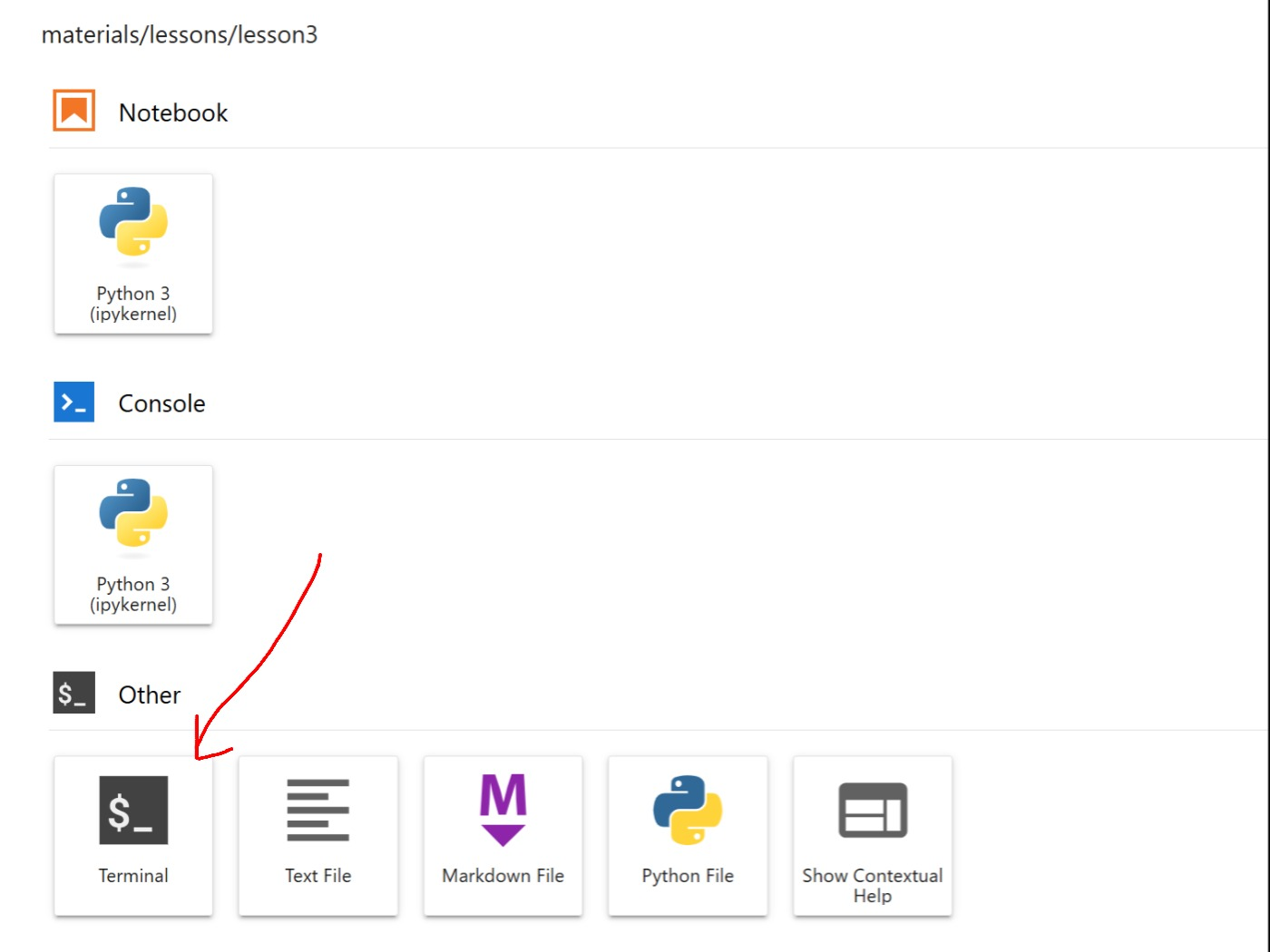
The terminal here works the same way as the one in VS Code. Note that the JupyterHub terminal will appear as a separate tab, rather than below the code editor. Since there is not a dedicated Run button in JupyterHub like there is in VS Code, you will need to use the python command to run any Python scripts in JupyterHub!
Python Console
If you typed the python command without specifying a file name, you will have ended up in the Python console (alternately called the interactive intepreter, or the REPL (Read, Evaluate, Print, Loop)).
python
You will know you are in the Python console if the start of each line begins with >>> rather than your environment and username.
We will not require you to do anything with this interpreter this quarter, but it is like a sandbox where you can explore Python statements/write code snippets. Hitting enter/return evaluates the last written statement, so it can sometimes be helpful for checking short statements. Try some of the following statements or code snippets in the console:
2 + 7 / 3 - (2 ** 5) % 4
example = ["is", "this", "a", "dagger", "I", "see", "before", "me"]
example[3] = "console"
print(example)
for i in range(4):
    print(i + 2)
Indentation
Indentation still matters in the console, and it is not automatically done for you! Make sure to use tab to indent any code blocks inside loops, conditionals, or functions.
You may have noticed that the console is not good for writing code, and you can’t easily save your work, so it’s not the most helpful thing for us!
To exit the Python console, type the command exit() and hit return/enter.
⏸️ Pause and 🧠 Think
Take a moment to review the following concepts and reflect on your own understanding. A good temperature check for your understanding is asking yourself whether you might be able to explain these concepts to a friend outside of this class.
Here’s what we covered in this lesson:
- Navigating file structure in the terminal
- Running Python scripts
- Interacting with the Python console
Here are some other guiding exercises and questions to help you reflect on what you’ve seen so far:
- In your own words, write a few sentences summarizing what you learned in this lesson.
- What did you find challenging in this lesson? Come up with some questions you might ask your peers or the course staff to help you better understand that concept.
- What was familiar about what you saw in this lesson? How might you relate it to things you have learned before?
- Throughout the lesson, there were a few Food for thought questions. Try exploring one or more of them and see what you find.
Canvas Quiz
This is a bonus lesson that has no associated Canvas Quiz.