CSE 154
Intro to JavaScript
Preview Slides
Overview
Introduction to JavaScript
- History and motivation
- Getting started with JS (linking to a .js script file and interacting with it in the browser)
- Introduction to data types, conditionals, and loops
- Introduction to JS functions
- Summary: Java vs. JS vs. Python
- Adding JS to an HTML page!
What We've Learned So Far
How to write content for a webpage using HTML
How to add styles to a webpage using CSS and linking a CSS file to an
HTML file
How to inspect the HTML and CSS of web pages in the browser
Webpage Behavior with JavaScript
Now that we know how to add content and styles to a web page, lets explore how to add responsive behavior
These slides will introduce the basics of the JavaScript language:
- History/Terminology
- JavaScript vs. Java comparisons
- Variables and Types
- Loop and Conditionals
Soon, we'll use these building blocks to dynamically update what you see on a web page in response to clicks, text input, timers, etc.
Terminology: Client-Side Scripting
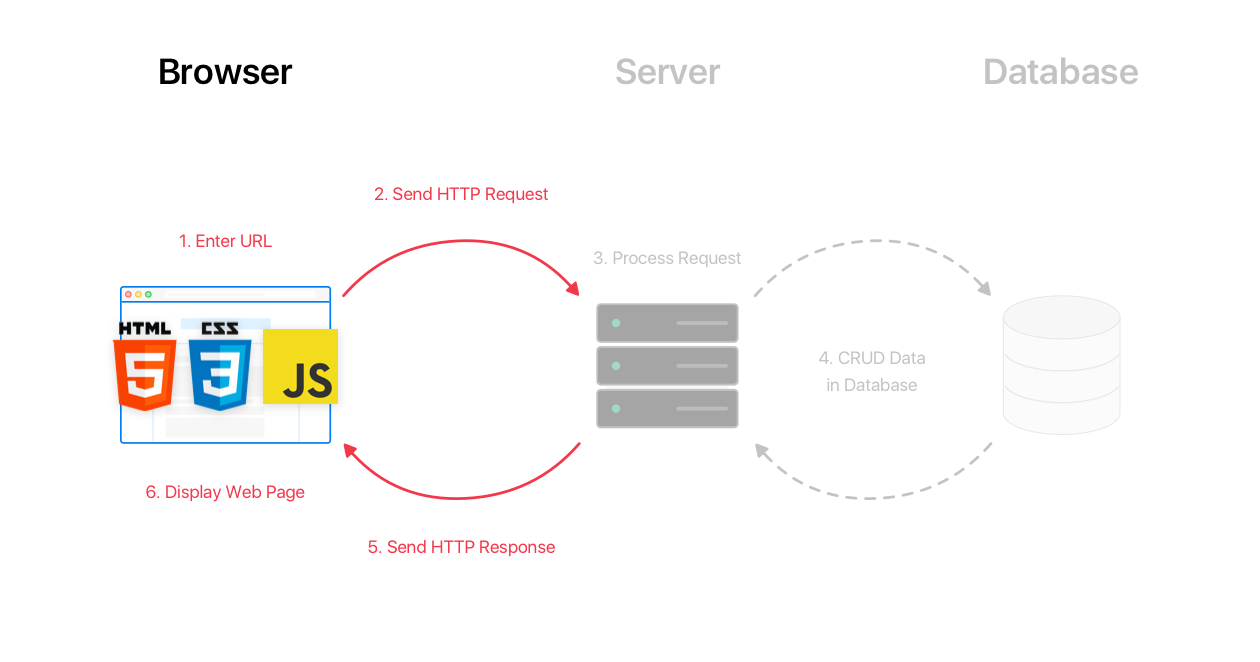
Your browser is a "client" program that knows how to makes requests to a server (e.g. the UW web server). The server takes the request from each client and returns a response (e.g. HTML files, CSS files, images, etc.).
Client-side JavaScript is ran in the browser after the page is returned from server.
Often, this code provides instructions for websites to listen to events and manipulate the page (DOM) as a result.
So... What is JavaScript?
A lightweight "scripting" programming language
Created in 1995 by Brendan Elch (original prototype created in 10 days and called LiveScript)
Used by browsers to make web pages interactive:
- Insert dynamic text into HTML (ex: username)
- Respond to events (ex: the page load, user's mouse click)
- Get information about a user's computer (ex: what browser they are using)
- Perform calculations on user's computer (ex: form validation)
A web standard (but not supported identically by all browsers )
NOT related to Java other than name and some syntactic similarities...
Can be used in the browser, Adobe Acrobat, Adobe Photoshop, embedded computers, the Unix terminal, etc. (we will be using it in the browser)
JavaScript vs. Java
JavaScript is interpreted, Java is compiled. (huh?)
JavaScript has more "relaxed" syntax and rules
- Fewer and "looser" data types (both integers and doubles are considered
Numbers) - Variables don't need to be declared
- Errors are often silent (a few exceptions)
- JS is similar to Python in these ways
JavaScript's key construct is the function rather than the object/class.
JS is contained within a web page and integrates with its HTML/CSS content
Following Along
As an interpreted programming language, JS is great to interact with a line at a time (similar to Python, but very different than Java). Where do you start?
The easiest way to dive in is with the browser's Console tab in the same inspector tool you've used to inspect your HTML/CSS.
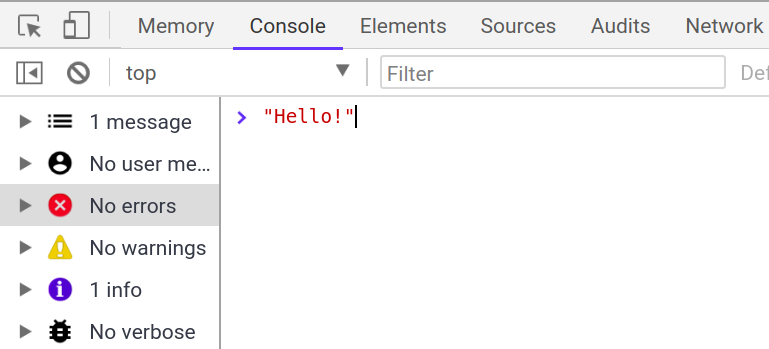
Until we learn functions to interact with the HTML DOM with JS, we recommend experimenting with the following code examples using this console to get comfortable with the fundamental syntax and behavior of the language. Try the recommended practice problems along the way!
Our First JavaScript Statement: alert
alert("message");
JS (template)
alert("IE6 detected. Suck-mode enabled.");
JS (example)
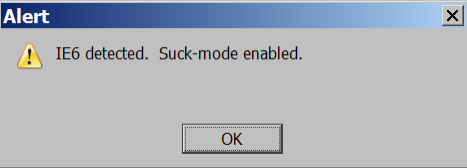
A JS command that pops up a dialog box with a message - not ideal in practice, but a good debugging tool when first learning JS
Output in JS: console.log
Used to output values to the browser console (can view in your browser's dev tools under
"Console"). You can think of this as System.out.println in Java or print in Python.
Often preferred over alert to debug JS programs.
console.log("message");JS (template)
console.log("The answer is: " + 42);
JS (example)
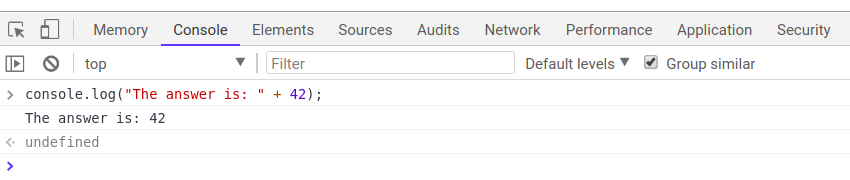
We'll often use it just to get familiar with the language/test things out in the Chrome Console.
Comments (same as Java)
// single-line comment

/* multi-line comment */
JS
Identical to Java's comment syntax
Recall: 3 comment syntaxes
HTML: <!-- comment -->CSS/Java/JS: /* comment */Java/JS: // comment
For functions and program files, we'll use JSDoc commenting, which will be introduced when we learn how to write JS functions (next lecture).
Practice:
commentSyntax,
commentary
Variables and types
let name = expression;
JS (template)
let level = 23;
let accuracyRate = 0.99;
let name = "Pikachu";
JS (example)
Variables are declared with the let keyword (case-sensitive). You may also see var used instead of let - this is an older convention, and you should use let in this class.
Types are not specified, but JS does have types ("loosely-typed")
Number,Boolean,String,Array,Object,Function,Null,Undefined- Can find out a variable's type by calling typeof
- Note: Type conversion isn't always what you expect...
A Note about Declaring Types in JavaScript
If you've programmed in a statically-typed language like Java, you will recall that when declaring variables, you must specify their type which must always stay the same.
boolean isValid = "hello!"; // errorJava
In a dynamically-typed language like JavaScript, you don't need to specify the
type (just use let or const) and you may change the type the variable refers to later in execution.
let isValid = true; // no error
isValid = "hello!";
isValid = 1;
JS
This may seem to imply fewer errors in JS, but it's not uncommon to run into subtle (silent) bugs in your JS programs as a result!
"Constants" in JavaScript
Since ECMA6, JavaScript has a special keyword to declare "constant" values. You should
use these over the let keyword for variables that are not intended to ever
be updated (similar to constants in Java).
Use UPPER_CASING naming conventions to
denote const in JS.
let month = 12;
month = 1; // no error

const COOLEST_CLASS = "CSE154";
COOLEST_CLASS = "clazz"; // error
JS
These can help avoid some of the bugs
mentioned on the previous slide (an error occurs when trying to reassign a
const).
Number Type
let enrollment = 99;
let medianGrade = 2.8;
let credits = 5 + 4 + (2 * 3);
JS
Integers and real numbers are the same type (no int vs.
double). All numbers in JS are floating point numbers.
Same operators: + - * / % ++ -- = += -= *= /= %=
Similar precedence to Java
Many operators auto-convert types: "2" * 3 is 6
String type
let nickName = "Sparky O'Sparkz";                  // "Sparky O'Sparks"
let fName = nickName.substring(0, s.indexOf(" ")); // "Sparky"
let len = nickName.length;                         // 15
let name = 'Pikachu';                              // can use "" or ''
JS
Methods:
charAt,
charCodeAt,
fromCharCode,
indexOf,
lastIndexOf,
replace,
split,
substring,
toLowerCase,
toUpperCase
More about Strings
Escape sequences behave as in Java: \' \" \& \n \t \\
To convert between Numbers and Strings:
let count = 10;                              // 10
let stringedCount = "" + count;              // "10"
let puppyCount = count + " puppies, yay!";   // "10 puppies, yay!"
let magicNum = parseInt("42 is the answer"); // 42
let mystery = parseFloat("Am I a number?");  // NaN
JS
To access characters of a String s, use s[index] or
s.charAt(index):
let firstLetter  = puppyCount[0];                            // "1"
let fourthLetter = puppyCount.charAt(3);                     // "p"
let lastLetter   = puppyCount.charAt(puppyCount.length - 1); // "!"
JS
Common Bugs when Using Strings
While Strings in JS are fairly similar to those you'd use in Java, there are a few special cases that you should be aware of.
- Remember that
lengthis a property (not a method, as it is in Java) -
Concatenation with
+:1 + 1is2, but"1" + 1and1 + "1"are both"11"!
Practice: repeat, containsTwice
Math object
            let rand1to10 = Math.floor(Math.random() * 10 + 1);
let three = Math.floor(Math.PI);
JS
Methods: abs,
ceil,
cos,
floor,
log,
max,
min,
pow,
random,
round,
sin,
sqrt,
tan
Properties: E, PI
for loop (same as Java)
for (initialization; condition; update) {
  statements;
}
JS (template)
            let sum = 0;
for (let i = 0; i < 100; i++) {
  sum = sum + i; // same as sum += i;
}
JS (example)
let s1 = "It's a-me, Mario!";
let s2 = "";
for (let i = 0; i < s.length; i++) {
  s2 += s1[i] + s1[i];
}
// s2 stores "IItt''ss  aa--mmee,,  MMaarriioo!!"
JS (example)
if/else Statements (same as Java)
if (condition) {
  statements;
} else if (condition) {
  statements;
} else {
  statements;
}
JS
Identical structure to Java's if/else statements
JavaScript allows almost anything as a condition
Practice:
rockPaperScissors
while loops (same as Java)
while (condition) {
  statements;
}
JS
do {
  statements;
} while (condition);
JS
break and continue keywords also behave as in Java but do not
use them in this class!
Practice:
loopMystery6
Logical Operators
Relational: > < >= <=
Logical: && || !
Equality: == != === !==
- Most logical operators automatically convert types. These are all true:
5 < "7"42 == 42.0"5.0" == 5
-
The
===and!==are strict equality tests; checks both type and value:"5.0" === 5isfalse. It's usually a good idea to use===instead of==. - What does
154 === 154.0evaluate to?
Helpful JavaScript equality table!
Boolean Type
            let iLikeJS = true;
let ieIsGood = "IE6" > 0; // false
if ("web dev is great") { /* true */ }
if (0) { /* false */ }
if (1) { /* true */ }
JS
Any value can be used as a Boolean
- "falsey" values:
false,0,NaN,"",null, andundefined - "truthy" values: anything else
Understanding what is "falsey" vs. "truthy" takes patience and practice.
When in doubt, check in the browser console!
Special Values: null and undefined
            let foo = null;
let bar = 9;
let baz;

/* At this point in the code,
 * foo is null
 * bar is 9
 * baz is undefined
 */
JS
undefined: declared but has not yet been assigned a value
null: exists, but was specifically assigned an empty value or
null. Expresses intentional a lack of identification.
A good motivating overview of
null vs.
undefined
Arrays
let name = [];                          // empty array
let names = [value, value, ..., value]; // pre-filled
names[index] = value;                   // store element
JS (template)
            let types = ["Electric", "Water", "Fire"];
let pokemon = [];        // []
pokemon[0] = "Pikachu";  // ["Pikachu"]
pokemon[1] = "Squirtle"; // ["Pikachu", "Sqiurtle"]
pokemon[3] = "Magikarp"; // ["Pikachu", "Sqiurtle", undefined, "Magikarp"]
pokemon[3] = "Gyarados"; // ["Pikachu", "Sqiurtle", undefined, "Gyarados"]
JS (example)
Two ways to initialize an array
length property (grows as needed when elements are added)
Array methods
let a = ["Mario", "Luigi"]; // [Mario, Luigi]
a.push("Koopatroopa");      // [Mario, Luigi, Koopatroopa]
a.unshift("Bowser");        // [Bowser, Mario, Luigi, Koopatroopa]
a.pop();                    // [Bowser, Mario, Luigi]
a.shift();                  // [Mario, Luigi]
a.sort();                   // [Luigi, Mario]
JS
Array serves as many data structures: list, queue, stack, ...
Methods: concat,
join,
pop,
push,
reverse,
shift,
slice,
sort,
splice,
toString,
unshift
pushandpopadd/remove from backshiftandunshiftadd/remove from frontshiftandpopreturn the element that is removed
Practice:
findMin
,
switchPairs
Splitting strings: split and join
            let s = "the quick brown fox";
let a = s.split(" "); // ["the", "quick", "brown", "fox"]
a.reverse();          // ["fox", "brown", "quick", "the"]
s = a.join("!");      // "fox!brown!quick!the"
JS
split breaks apart a String into an array using a delimiter
- Can also be used with regular expressions surrounded by /:
let a = s.split(/[ \t]+/);
join merges an array into a single String, placing a delimiter between
them
A Few Last Notes on Typing
As you write JS programs, you may will run into some silent
bugs resulting from odd typing behavior in JS. Automatic type conversion, or coersion,
is a common, often perplexing, source of JS bugs (even for experienced JS programmers).
Why does it happen? JS was designed to "work" as intuitively as possible without requiring the strict types.
Why is this important to be aware of? You'll be writing programs which use variables and conditional logic. Knowing what is considered truthy/false and how types are evaluated (at a high level) can make you a much happier JS developer (some practice)
Examples of some "less-intuitive" evaluations:
2 < 1 < 2;// true
0 + "1" + 2;// "012"
[] + [];// ""
"1" / null;// Infinity
Summary of Java vs. JS vs. Python
| Java | JS | Python | |
|---|---|---|---|
| Compiled vs. Interpreted | Compiled | Interpreted | Interpreted |
| Typing | Strong | Loose | Loose |
| Variable Declaration | Must be declared before use | Does not need to be declared before use | Does not need to be declared before use |
| Key Construct | Classes (OOP) | Function | Function |
From the Console to a .js File
Now, we'll use these building blocks of a new programming language to control the behavior of our pages (which we don't get with HTML/CSS!).
Our Toolbox So Far: HTML/CSS + JS
 Image source (MDN) and recommended reading
So far, we have used Atom (or a similar editor) to write HTML/CSS for the structure/styles for our page. We will continue to use Atom to write JavaScript and add behavior.
As always, the webpage is rendered by the browser. We will add a link to our JS from HTML (similar to the idea of linking a CSS file) and the browser will execute the JS after the HTML/CSS has been loaded.
JS/HTML Connection
In the Pre-Check, you were asked to think about some examples of interactive UI elements on webpages.
There are many HTML5 tags to create a UI! We'll see a few as we learn about adding behavior to our webpages.
But HTML tags aren't too helpful if we can't do anything with them.
In general, to add interactivity to our HTML/CSS websites we need to:
- Link a JS program to our HTML (in the
<head>) - Identify the elements we want to "listen" to user/page events
- Identify the events we want to respond to
- Identify what each response function is
- Assign the listener elements the functions when the event(s) occurs! own event(s) to listen to
Event-Driven Programming
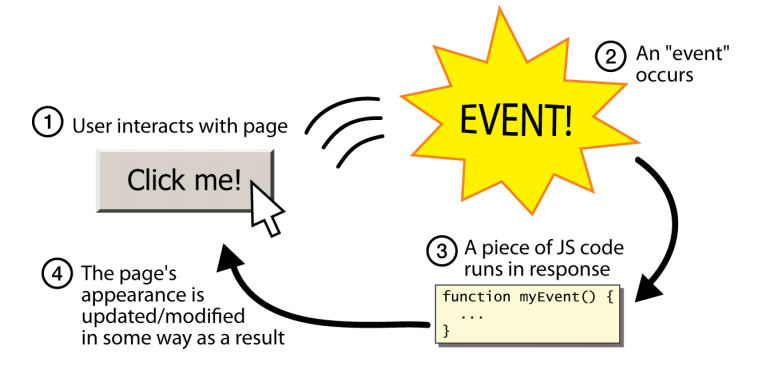
Unlike Java programs, JS programs have no main; they respond to user actions
called events
Event-Driven Programming: writing programs driven by user events
Common Types of JavaScript Events
| Name | Description |
|---|---|
| click | A pointing device button (e.g. mouse) has been pressed and released on an element |
| dblclick | A pointing device button is clicked twice on an element |
| keydown | Any key is pressed down |
| keyup | Any key is released |
| mouseenter | A pointing device is moved onto an element that has the attached |
| mouseover | A pointing device is moved onto the element that has the listener attached to itself or one of its children |
| mousemove | A pointing device is moved over an element |
| mousedown | A pointing device button is pressed on an element |
| mouseup | A pointing device button is released over an element |
We'll cover more later (you can find a full list here),
but today we'll demo click!
Handling Events with addEventListener
function handleFunction() {
  // event handler code
}
// attaching a named function
element.addEventListener("click", handleFunction);
JS (onclick template)
- JavaScript functions can be set as event handlers
- When you interact with the element, the function will execute
-
You can also attach events with
element.onclick(see example and more information on slide below)
Older Alternative: onevent handlers
Example with onclick (same effect as previous slide):
// attaching a named function
function handleFunction() {
  // event handler code
}
element.onclick = handleFunction;
JS (onclick template)
The newer addEventListener is preferred as it lets you easily
remove a listener to a specific event on an element, and it also lets you add
multiple functions to an event listener. For this example, that doesn't make a
difference, but we will see examples where it does!
More information about tradeoffs here.
Accessing Elements from the Document in JavaScript
Finally... the fun starts.
Accessing an Element by ID
let name = document.getElementById("id");
JS
-
document.getElementByIdreturns the DOM object for an element with a givenid(note that you omit the#when giving an id) - We'll learn about other ways to get DOM elements (e.g. by class) tomorrow and Wednesday!
Back to HTML with Buttons: <button>
<button id="my-btn">Click me!</button>
HTML
output
Button's text appears inside tag; can also contain images
To make a responsive button or other UI control:
- Choose the control (e.g., button) and event (e.g., mouse click) of interest
- Write a JavaScript function to run when the event occurs
- Attach the function to the event on the control
Right now this button doesn't do anything when we click it. That's because it doesn't have event handler code attached :( Let's see an example where we do have an event listener attached to a button on our page!
click Event Handler: an Example
<img id="pokeball" src="images/pokeball.jpg" alt="a pokeball" />
<button id="demo-btn">Click me!</button>
HTML
let demoButton = document.getElementById("demo-btn");
demoButton.addEventListener("click", changeImage);

function changeImage() {
  let pokeballImg = document.getElementById("pokeball");
  pokeballImg.src = "images/mystery.gif";
}
JS
output
Putting it All Together
We'll learn more about this tomorrow, but in order for our JS to work when
attached to an HTML file, we need to wrap any code that interacts with the
document inside the window's load event
handler. load is the event listened to on the window to indicate when
the page "is loaded".
When the page is loaded, everything in the
attached function (in our example, we call this main),
is executed, including any click attachments!
// listener attached before page is loaded
window.addEventListener("load", init);

function init() {
  // this code is ran after page is loaded!
  let demoButton = document.getElementById("demo-btn");
  demoButton.addEventListener("click", changeImage);
}

function changeImage() {
  let pokeballImg = document.getElementById("pokeball");
  pokeballImg.src = "images/mystery.gif";
}
button-example.js (commented example)
You can see the HTML output here. On Wednesday, we'll add one more important component to our JS files: the module pattern.
Resources and Tips
Review programming basics: using variables, arrays, loops, if-statements, and functions
Go over some JavaScript tutorials - there are many great ones!
Practice! We now have JavaScript problems on Practice-It (80+ problems) and its sister site CodeStepByStep (200+ problems).
Check out cool examples of JavaScript on the web!