CSE 121
Back to Top
CSE 121
  • Home / Calendar
  • Syllabus
  • Assignments
  • Getting Help
  • Course Staff
  • Resources

  • Course Tools
  • EdStem
  • Gradescope
  • Grade Calculator
  • Anonymous Feedback
  • Acknowledgements

Attention!

This website is still under development. More information will be added soon and all content is subject to change.

Reading Scores on Gradescope


Gradesheets appear on the right-hand side of the window.
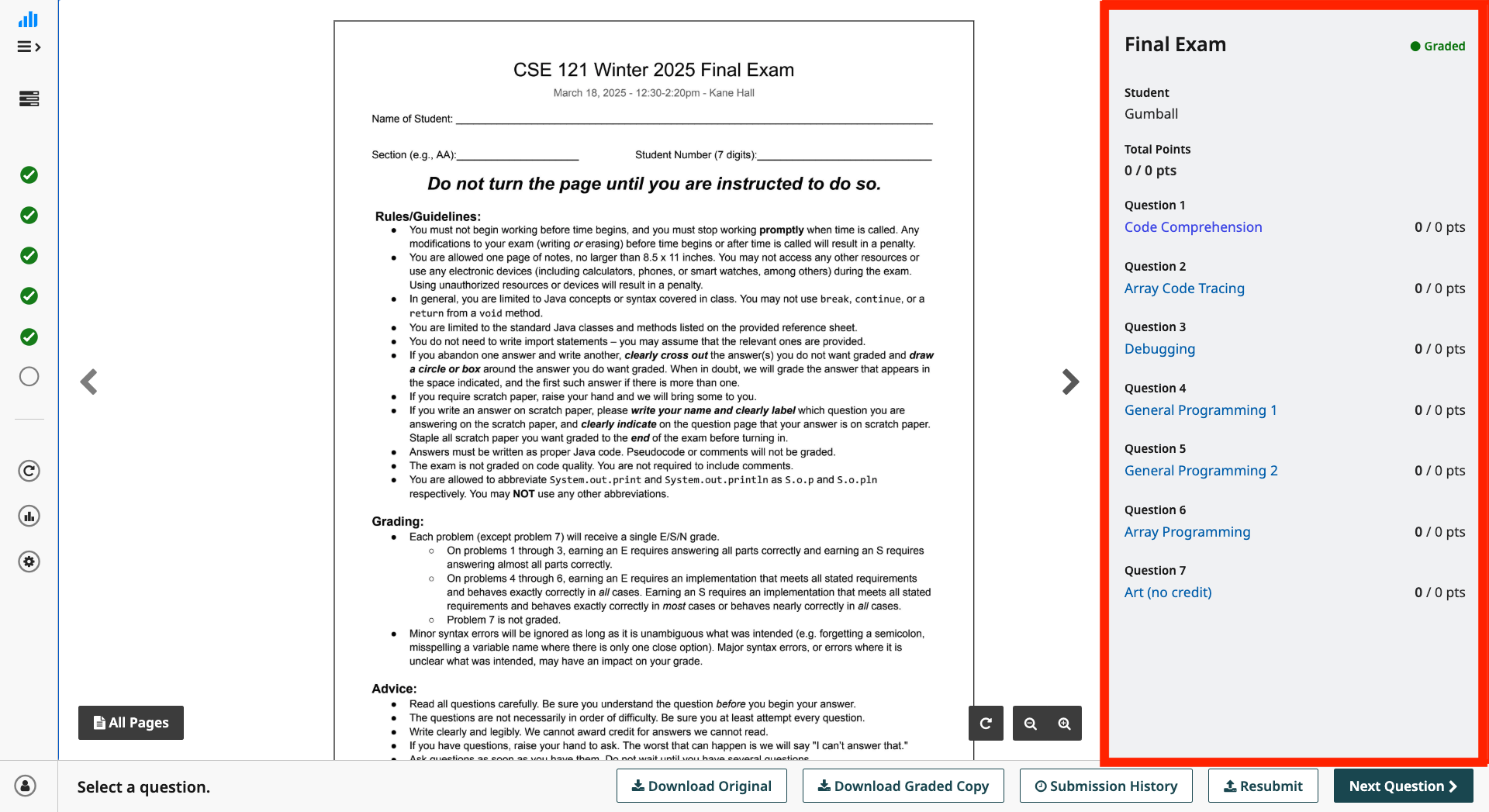
The default Gradescope view for the final exam. The screenshot highlights the "gradesheet", which is the right-hand sidebar titled "Final Exam" and has a list of questions and points. The screenreader label for this zone is "submission rubric and results".

All questions have been set to 0 points; the points are not your grade.

  • To see your ESN grade for a question, click on the question name on the right-hand side of the window.
  • To go through the questions in order, click the “Next Question” button at the bottom right of the window.
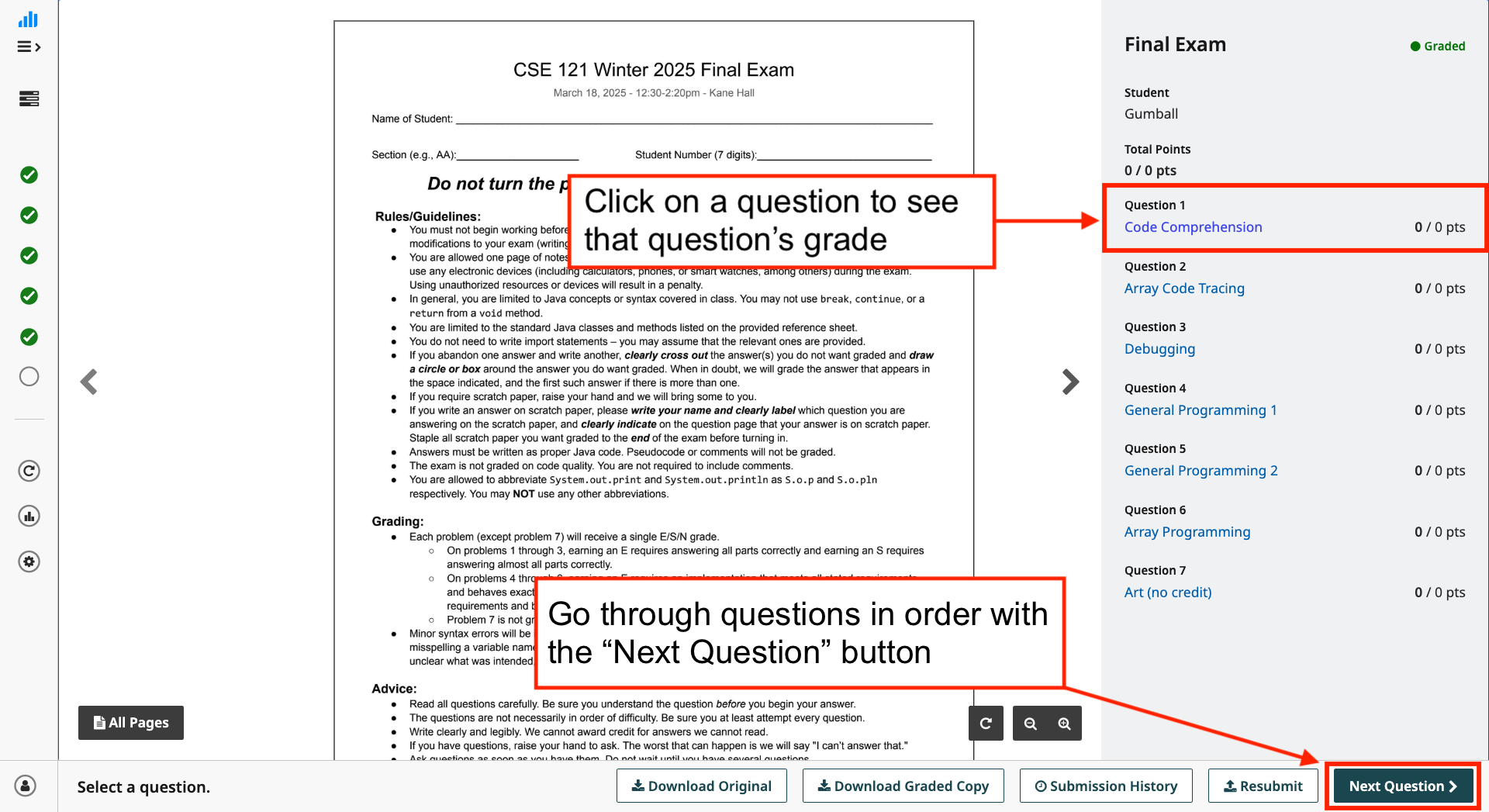
An annotated screenshot that highlights two different zones of the Gradescope UI. The first is that each individual question in the gradesheet (aria-label: submission rubric and results) is a clickable link that brings the user to the rubric for a specific question. The second is the "Next Question" button in the action bar, which cycles through each question.

A checkmark will appear next to the grade you received for each question (as well as a brief explanation of the rubric).

For example, this student earned an E on Question 1:
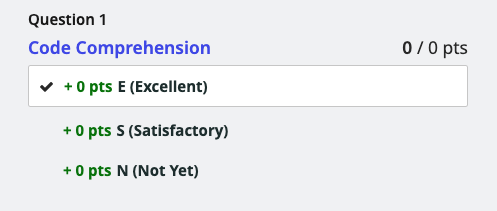
The Gradescope UI for Question 1: Code Comprehension. Three items are in the list, but just the "E (Excellent)" entry is selected, indicating that the student received an E.

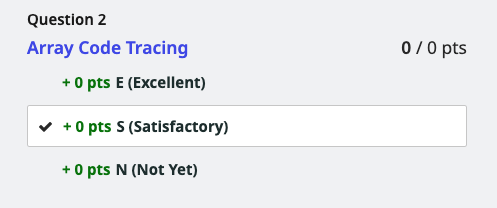
… an S on Question 2:

The Gradescope UI for Question 2: Array Code Tracing. Three items are in the list, but just the "S (Satisfactory)" entry is selected, indicating that the student received an S.

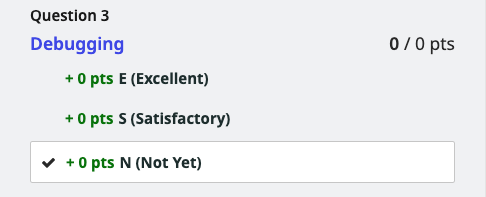
… and an N on Question 3.

The Gradescope UI for Question 3: Debugging. Three items are in the list, but just the "N (Not Yet)" entry is selected, indicating that the student received an N.

Depending on the question, TAs may have left comments alongside your submission or annotations on the submission themselves. Please make sure to read these!

Search

Search the class website; related sections and pages will appear below. Note: this search is not as forgiving with typos as other search engines.