Surface of Revolution


A surface of revolution is a surface created by rotating a curve around an axis. The interface for editing the curve is already provided. Your task is to implement the surface of revolution algorithm given the samples of points on the curve and the number of radial subdivisions. Typically, to describe a mesh you only need vertex positions and a triangle list of how the vertices are connected. In this project however, you are also required to compute the vertex normal and the texture coordinate (UV coordinates) for each vertex.

Program Overview

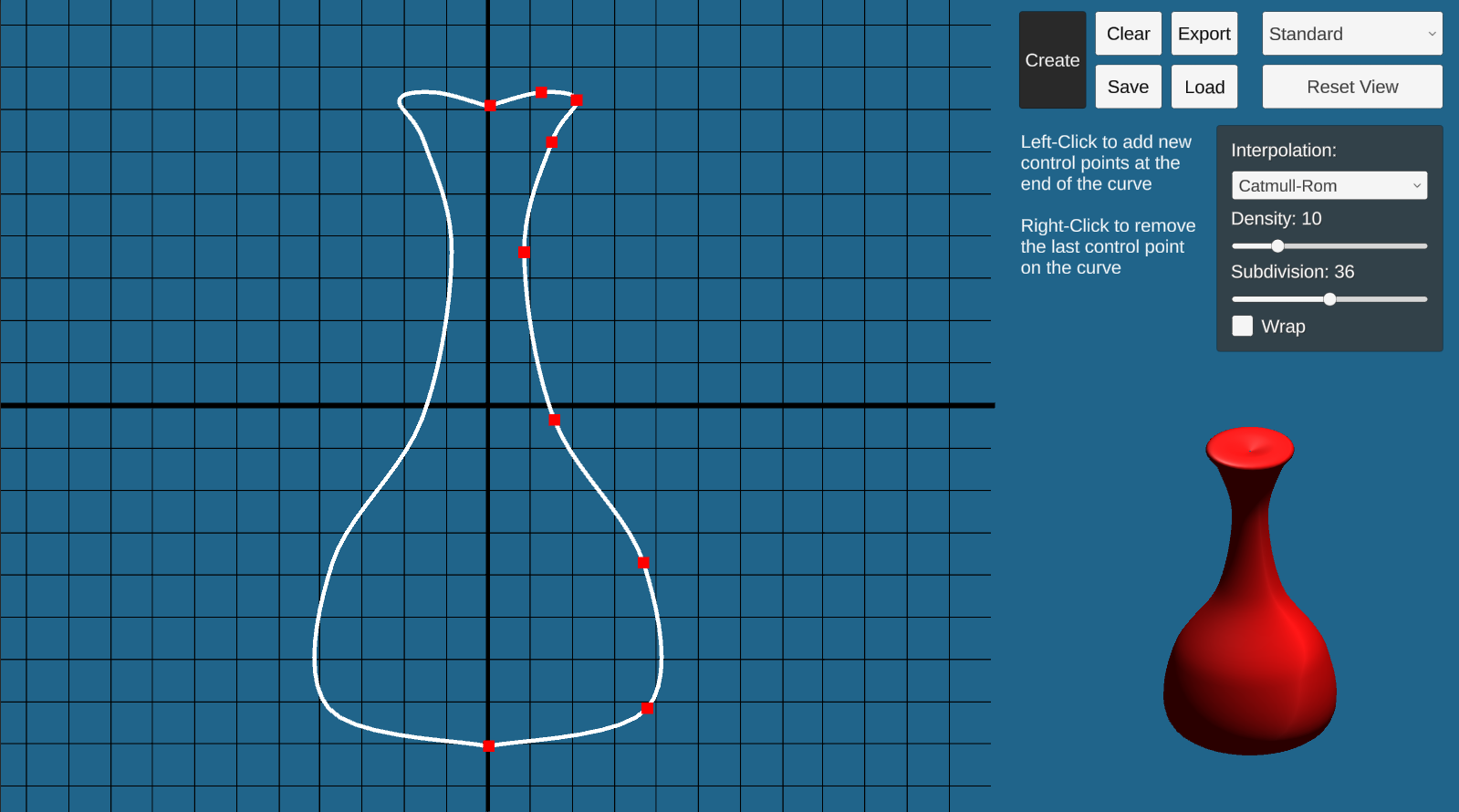
Go to the SurfaceOfRevolution scene and hit play. In “Play” mode, you will see a working curve editor on your left and some options on the top-right. You should change the resolution to Full HD or any with 16:9 aspect ratio for the UI to display correctly. Right now, you can only create and delete control points of the curve. Once your code is done, you will be able to click ‘Create’ and the output mesh will appear on the lower-right of the screen.

To construct a curve, click anywhere on the graph. The control point will appear on the screen. This graph is on the xy-plane, and the curve you created will be automatically reflected with respect to the y-axis for visualization purposes.

There are several options for the curve and the output mesh:

After changing these options, you will need to click Create again for the change to reflect on your output mesh. We suggest you use the default settings while you are trying to debug your code.

We provide four viewing options of the output mesh (top-right dropdown) to aid your debugging: standard, wireframe, normal visualization, and textured. You can use the wireframe to see the actual triangle of your mesh. The normal visualization shows different colors based on the direction of the normal at that point. This mode is helpful to determine if you get the vertex normals correct. The textured shows your mesh with the textured material. This will help determine if you get your UV coordinates right.

Once you have created a surface, you can click Save to save the control points to a text file, and you can use Load to load that text file back to get the exact same control points. You can also Export the model as a .asset file so that it can be used in the next part of the project or one of your own.

Surface of Revolution Implementation

To complete this part, fill out the ComputeMeshData() function in the SurfaceOfRevolution.cs.

Your function will use the following variables as inputs:

Your function will compute the following, which will be used to generate and visualize the output mesh:

Note that since vertices, normals, UVs are per-vertex information, they will have the same size: the number of vertices.

Texture mapping allows you to “wrap” an image around your model by mapping points on the texture to the vertices of your model. For each vertex, you indicate the coordinate in the texture space that the vertex should be mapped to as a 2D pair (U, V) where U and V range from 0 to 1. For example, if the UV coordinates of vertex 8 is (0.5, 0.5), The very center pixel of the texture will be mapped to vertex 8. Unity and the shader will automatically interpolate the UV coordinate inside the faces based on the UV coordinate of the vertices. You may create a copy of the first set of vertices to allow the UVs to map to the entire texture.

We recommend you first start working on computing the vertices and triangles. Then, move on to normals, and lastly the UVs.

Using Different Textures

If you want to use a different texture, you will need to do the following:

  1. Import an image file into your scene by drag-and-dropping the image into the Assets folders under the Project tab.
  2. Select Assets/Resources/TexturedMat material, then navigate to the Inspector pane to set its Albedo property under Main Maps to be the image file.

Using Different Textures

To verify the correctness of your implementation, follow these steps:

  1. Select Load, then navigate to the ControlPoints folder and choose our provided file sample1.txt, sample2.txt, etc.
  2. After the points are loaded, click Create to draw a surface of revolution.
  3. Do the same for the solution program. Observe if the output from your implementation is similar to the solution. Change to a different viewing mode and then compare your results with the solution.

Hierarchical Modeling


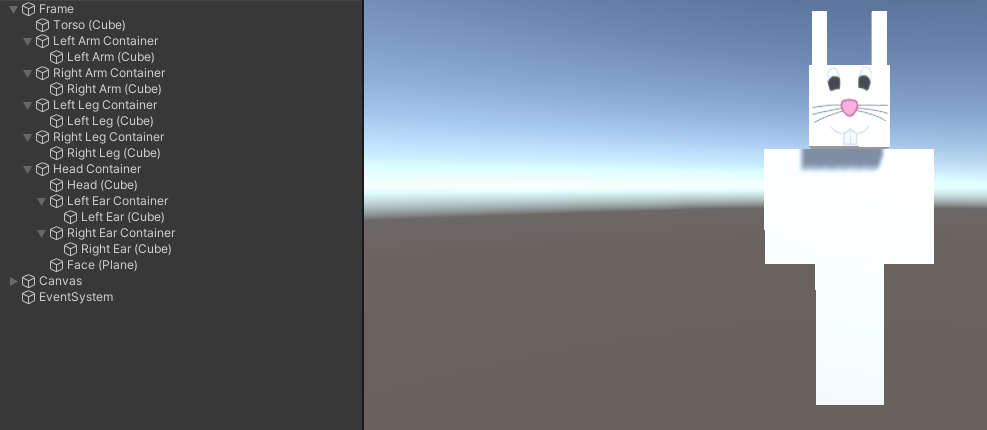
In this part, you will create a basic humanoid model and add simple animations. The provided HierarchicalModel scene, which is basically empty, is the place for you to compose the model.

The Model

Regarding your hierarchical model, there are 2 requirements:

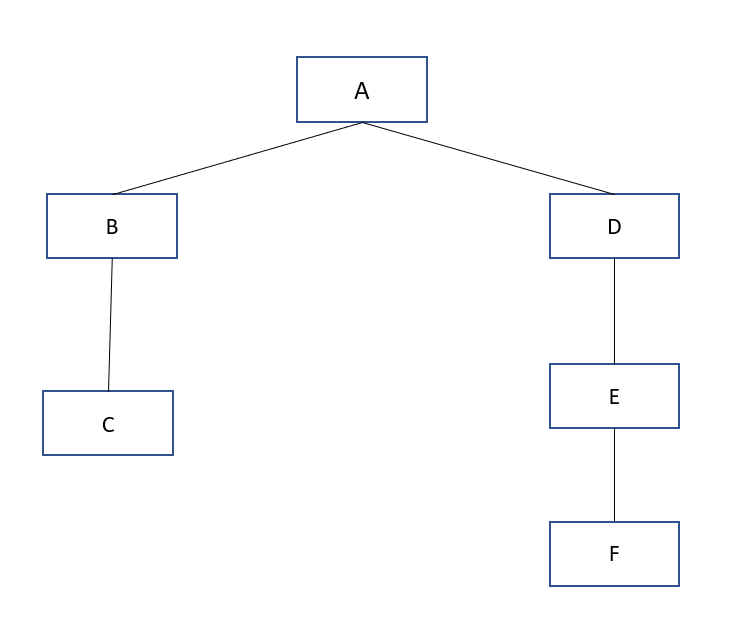
We recommend you refer to class lectures and write down the tree diagram of your model to help you figure out what your model will be, and to practice thinking about empty nodes, centers of rotation, and so on. You do not need to turn in your diagram.

In addition to providing a little fun, the animations will help you learn more about hierarchy design – you will find that certain animations are easier if you plan your hierarchy together with the animations you want to perform.

The Animations

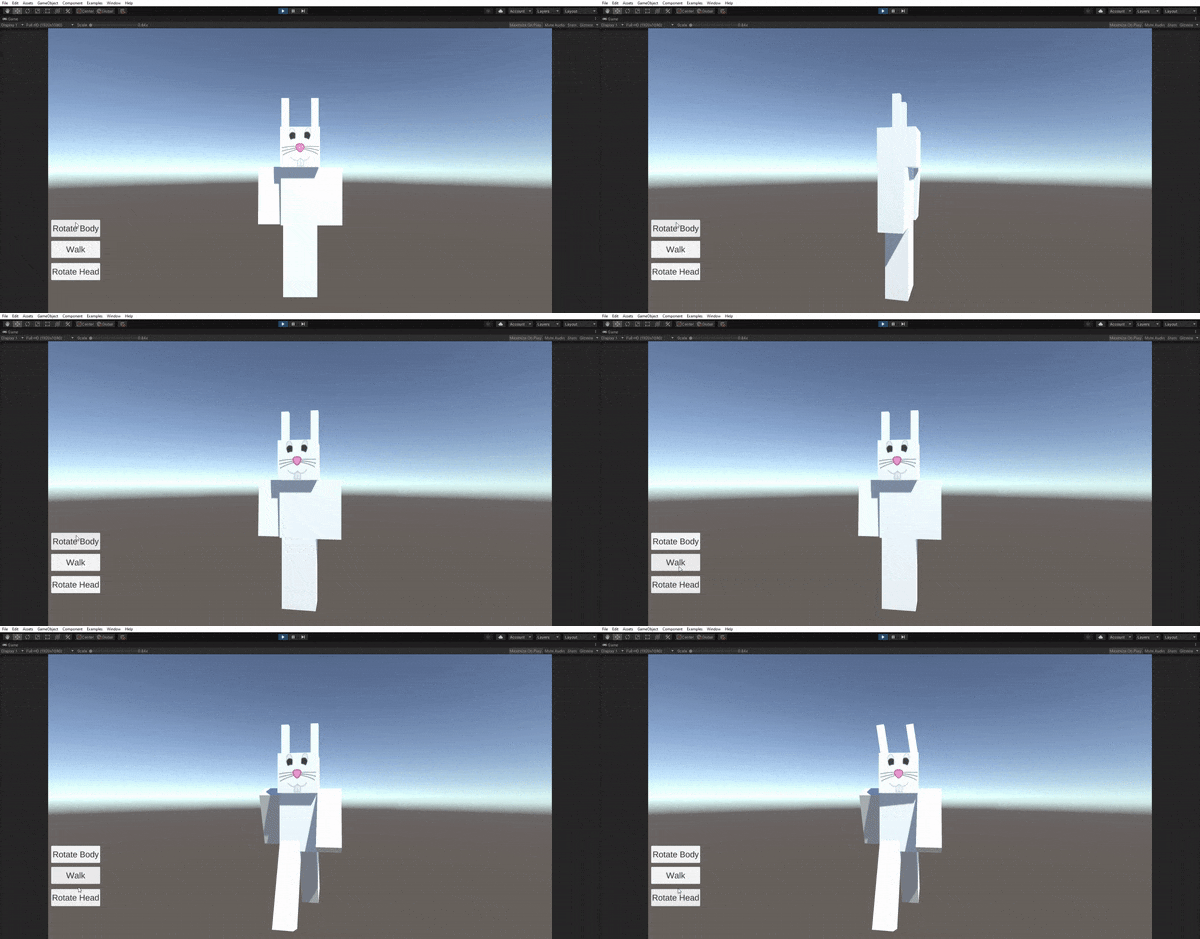
You are to create 3 buttons that execute basic animations for your model as follows:

You will need to create a new script and attach it to your model to manage animations and handle when the user presses a button. Create a Canvas GameObject to create a UI (UI -> Canvas). Add buttons by creating a Button GameObject (UI -> Button - Text Mesh Pro). Make sure your buttons are child GameObjects of your Canvas.

Rotations are stored as a Quaternion. To convert between euler angles and quaternions, use the Quaternion.Euler() method to create quaternions, and the eulerAngles property of a Quaternion instance to retrieve the euler angles of a quaternion. If you want to interpolate between quaternions, use Quaternion.Slerp(), which perfoms spherical linear interpolation. You may also use Vector3.Lerp() to linearly interpolate between euler angles and then convert to a quaternion.

You will want your animations to be the same speed regardless of framerate, so you should make use of Time.deltaTime (which gives the amount of time that has passed since the previous frame) to normalize the animation speed. You may also place your animation code in FixedUpdate() which has a fixed Time.deltaTime.

Do not use Unity's built in animation features. You should manually create the animations through scripting.