After selecting a model parameter in the tree on the left, the parameter's
corresponding animation curve is displayed in the graph.
The skeleton evaluates each spline as a simple piecewise linear curve that linearly interpolates between control points.
Note that when you select a curve, it scales to the max and min value you have set as control points to "fit" into the graph window.
You can manipulate the curve as follows:
|
Command |
Action |
| LEFT MOUSE |
Selects and moves control points by clicking and dragging on them |
| SHIFT + LEFT MOUSE |
Selects multiple control points |
| DRAG LEFT MOUSE |
Rectangle-selects multiple points |
| DRAG RIGHT MOUSE |
Pans the graph |
| SCROLL |
Zooms the graph in X and Y dimensions |
| SHIFT + SCROLL |
Zooms only the X axis (time in frames) |
| SHIFT + SCROLL |
Zooms only the Y axis (parameter value) |
| F |
Fits the graph view to the current control points |
| K |
Creates a keyframe (control point) at the current time position |
| DELETE / FN + BACKSPACE |
Removes the selected control point |
At the bottom of the window is a simple set of VCR-style controls and a time slider that lets you play, pause, and seek in your animation. Along the menu bar of the Animation window, you can change a few settings:
- Curve Type: Chooses how to interpolate between your control points, or keyframes. The skeleton currently uses linear interpolation for each, which you will have to fix (see below: Skeleton Code for Curves).
- Wrap Curve: Interpolates between the last and first control points in your graph so that your motion can loop smoothly.
Linear curve wrapping is implemented for you; implementing curve-wrapping for the other curve types is a whistle of extra credit each.
- Loop: Automatically loops playblack of your animation when it reaches the end.
- Keyframe: Creates a keyframe (control point) at the current time position.
- Set Length: Sets the length in seconds. NOTE: If you decrease the length of your animation, any keyframes that were set past that time length are deleted.
- Set FPS: Sets the frames per second for playback of your animation.
The AnimationWidget object owns a bunch of Curve objects.
The Curve class is used to represent the time-varying splines associated with your object parameters.
You don't need to worry about most of the existing code, which is used to handle the user interface.
However, it is important that you understand the curve evaluation model.
Each curve is represented by a vector of evaluated points, calculated from a vector of control points.
std::vector<ControlPoint*> control_points_;
The user of your program can manipulate the positions of the control points
using the Animation Widget interface.
Your code will compute the value of the curve at intervals in time, determining the shape of the curve.
Given a set of control points, the system figures out what the evaluated points are based on the curve type.
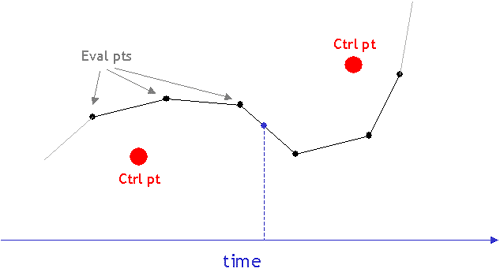
This conversion process is handled by the CurveEvaluator member variable of each curve.
Classes that inherit from CurveEvaluator contain an EvaluateCurve function; this is what you must implement for the required curve evaluators: Bezier, Catmull-Rom, and B-Spline.
C2-Interpolating curves can be added for extra credit.
In the skeleton, only the LinearCurveEvaluator has been implemented, and each other evaluator currently acts as a linear curve.
Consequently, the curve drawn is composed of line segments directly connecting each control point.
Use LinearCurveEvaluator as a model to implement the other required curve evaluators.
CurveEvaluator::EvaluateCurve
This function returns a vector of the evaluated points and takes the following parameters:
ctrl_pts--a collection of control
points that you specify in the curve editor
animation_length--the largest time, in seconds,
for which a curve may be defined (i.e., the current "movie length")
wrap--a flag indicating
whether or not the curve should be wrapped (wrapping can be implemented for
extra credit)
For Bezier curves (and the splines based on them), it is sufficient to
sample the curve at fixed intervals of time. The adaptive de Casteljau
subdivision algorithm presented in class may be implemented for an extra bell.
Catmull-Rom and B-spline curves should be endpoint interpolating. This can
be done by doubling the endpoints for Catmull-Rom and tripling them for
B-spline curves.
You do not have to sort the control points or the evaluated curve points.
This has been done for you. Note, however, that for an interpolating curve
(Catmull-Rom), the fact that the control points are given to you sorted by x
does not ensure that the curve itself will also monotonically increase in x.
You should recognize and handle this case appropriately. One solution is
to return only the evaluated points that are increasing monotonically in x.
Also, be aware that the evaluation function will linearly interpolate
between the evaluated points to ensure a continuous curve on the screen.
This is why you don't have to generate infinitely many evaluated points.
UI
The particle system as a whole, sphere colliders, and plane colliders have been added to the Animator UI as SceneObjects.
You may add them to your scene the same way you add 3D Objects, and their properties will appear in the right-hand Inspector window.
For particle systems, sliders are included for Period, controlling how often particles are emitted, and Restitution, the constant you should use in calculating collision force attenuation.
You'll also notice Sphere properties in the Inspector. The skeleton currently uses sphere primitives as the Geometry component for particles. If you'd like to change that, modify what component is added inside the Scene::CreateParticleSystem method.
Skeleton Code
The skeleton code has a very high-level framework in place for running
particle simulations that is based on Witkin's Particle System
Dynamics. In this model, there are three major components:
- Particle objects (which have physical properties such as mass, position and velocity)
- Forces
- An engine for simulating the effect of the forces acting on the particles
that solves for the position and velocity of each particle at every time
step
You are responsible for coming up with a representation for particles and
forces. You will be computing the forces acting on each particle and updating their positions and velocities based on these forces using Euler's method. Make sure you thus model particles and forces in some way that allows you to perform this update step at each frame.
The skeleton provides a very basic outline of a simulation
engine, encapsulated by the ParticleSystem class within scene/components. The model_matrix_ field is provided for you to use in converting local coordinates to world space. The skeleton also already includes PlaneCollider and SphereCollider objects, but you will need to implement the collision detection code within the ParticleSystem class.
Note that the ParticleSystem
declaration is by no means complete. As mentioned above, you will have to
figure out how you want to store and organize particles and forces, and as a
result, you will need to add member variables and functions. If you want to provide further UI controls or more flexibility in doing some very ambitious particle systems, you can also search for how the interface is used and re-organize the code. Bells and whistles will be awarded for super cool particle systems, proportional to the effort expended.